MEDIT Instruction |
MEDIT( options ) list of arrays
MEDIT opens a spreadsheet style editing window which allows you to view, edit, or enter data in RECTANGULAR, VECTOR, SYMMETRIC or PACKED arrays. This instruction is particularly useful for writing interactive procedures. The window also has Max and Min buttons that will quickly show you the maximum or minimum value in the displayed matrix.
Parameters
|
list of arrays |
This is the array or list of arrays you want to view or edit. These can be any combination of real-valued RECTANGULAR, VECTOR, SYMMETRIC or PACKED arrays. You must declare, dimension, and initialize these arrays before using them with MEDIT.
MEDIT currently cannot be used with other types of arrays (that is, arrays of integers, arrays of labels, etc.). |
Options
[EDIT]/NOEDIT
With EDIT, the user can change the values of the array. With NOEDIT, the user can view the contents of the array, but cannot change any of the values.
MODAL/[NOMODAL]
With MODAL, an MEDIT editing window functions like a modal dialog box. Execution of any pending instructions is suspended until the user closes the editing window(s) opened by MEDIT. Also, RATS is essentially “locked” into local mode, so no new instructions can be executed while the editing window is open. The user can, however, switch to other windows or select menu operations. This setting is very useful in interactive procedures where you need the user to set the array before continuing with the rest of the program.
With NOMODAL, RATS continues executing any pending instructions after opening the editing window(s). The user can also enter new instructions in the input window without first closing the editing window(s).
WINDOW="string for window title"
You can use this option to supply a title for the editing window(s) (this title is used for all windows when editing more than one array). By default, RATS labels each window with the name of the array associated with that window.
PROMPT="string for window prompt"
This adds the text string you supply to the upper left corner of the MEDIT dialog box. You can use the characters \\\\ to put a line break in the string.
VLABELS=VECTOR of STRINGS for row labels
HLABELS=VECTOR of STRINGS for column labels
You can use these options to supply your own labels for the rows and columns in the editing window(s). By default, columns and rows are labeled with integer row or column numbers. If you include several arrays on a single instruction, RATS will use the same set of VLABELS and HLABELS for all of the editing windows.
PICTURE="picture code for data" [none]
A picture code is most helpful when you’re using MEDIT to display data rather than having the user enter or edit it. MEDIT, by default, will use the “best” representation that fits in 15 digits. This not only may show many more digits than are statistically reliable, but also will take up more room per number than a smaller format, so fewer values will be visible at one time. The option PICTURE="*.###" will limit the display to three digits right of the decimal.
SELECT=VECTOR[INTEGER] of selected rows
STYPE=[ROWS]/ONE/BYROW/BYCOL
If you use the SELECT option, MEDIT will display the data, and the user can select items from the matrix. When the window is closed, the VECTOR[INTEGER] that you provide on the option will be filled with information regarding the selection, as described below.
You use STYPE to control how selections are made. With the default of STYPE=ROWS, the user can select one or more rows. The array provided using the SELECT option will have dimension equal to the number of selections made, and will list the rows selected using numbers 1,...,n. If STYPE=ONE, it will have dimension 2 with array(1)=row and array(2)=column. If STYPE=BYROW, the user selects one cell per row. The SELECT array will have dimension equal to the number of rows, with array(i) set equal to the column selected in row i. STYPE=BYCOL is similar, but one cell per column is selected.
Note that this type of selection is probably done more easily now using the DBOX instruction with the MATRIX, MSELECT and STYPE options.
Examples
This simple example uses MEDIT as a way to type values into a matrix:
declare rectangular r(10,10)
medit r
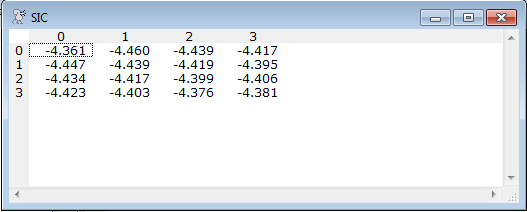
The code below estimates an ARIMA model for various combinations of AR and MA lags, and computes Akaike and Schwarz criterion values for each model. The resulting criteria values are then displayed in an MEDIT window. (This can also be done with REPORT).
do mas=0,3
do ars=0,3
boxjenk(constant,diffs=1,ma=mas,ar=ars,maxl, $
noprint) logyen 1973:5 1994:12
@regcrits(noprint)
compute aic(ars+1,mas+1)=%aic
compute sic(ars+1,mas+1)=%sbc
end do ars
end do mas
medit(hlabels=||"0","1","2","3"||,vlabels=||"0","1","2","3"||, $
picture="*.###",noedit) aic sic
The resulting MEDIT window will look something like this:
Copyright © 2025 Thomas A. Doan