

This is the software activation dialog. Most of our software will require you to activate the software for a specific computer. In most cases, something like this will pop up when you first run the software:
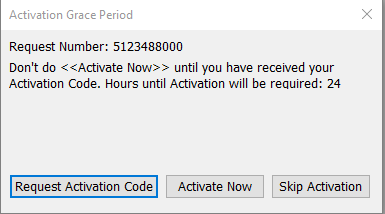
The Request Number is a value which identifies your computer. We use that to generate an Activation Code. To get the Activation Code, you need to send us an activation request. If you have not already sent that, you will need to click on the Request Activation Code button. This will pop up a web form which will send us an e-mail with the information that we will use to generate the Activation Code. You will get two e-mails: the first is just a confirmation of the request. The second (which may take up to 24 hours) will have the actual Activation Code. The software will run without that Activation Code for the amount of time shown in the dialog box (here 24 hours). Once you've done the Activation Request (once is enough), you can just use the Skip Activation button to run the software.
Once you have the Activation Code from the return e-mail, you can push the Activate Now button when you launch the program. That will pop up the dialog below. This will also be the dialog that comes up immediately if the "grace period" has expired.
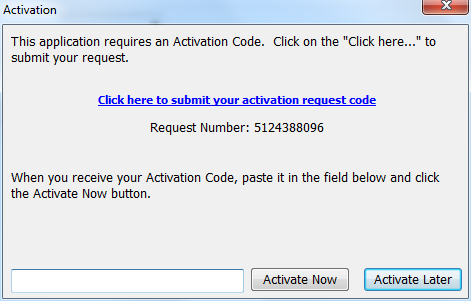
If you've already sent us the request and have the second e-mail with the Activation Code, just paste it into the text box at the bottom and click the Activate Now button. If you have not sent us the request, then do will have to the "Click here..." link to submit it now, and then you'll have to wait for us to process it. (Activate Later exits the application).
Invalid Activation Code
If you get the message "An invalid activation code was entered", you have just been through the type of dialog shown immediately above. There are several possible reasons for the "invalid activation code" message.
- You put in the Request Number itself (the one showing in the middle of the dialog box), and not the Activation Code. Until you get the Activation Code from us, you can't successfully activate the software.
- The request number that you sent us, and the activation code generated from it, are specific to a single computer. If you try to use an Activation Code on a different computer from the one used to generate the request, it won't work. You will need to send a separate activation request from the second computer. Click on the Retry button in the message box, and when you get the main activation dialog back, do Click here... to submit the request for this computer.
- If you haven't done sent us the activation request, you need to do that. That will send us the information that will allow us to provide the correct activation code for this computer. We will send back an e-mail with the proper code. Click on the Retry button to reload the main activation dialog and then Click here....
- Some e-mail programs don't handle the copy and paste of the Activation Code very well. If you've received the activation code in an e-mail and this is the computer that generated the request, click on Retry in the message box, and when you get back to the main activation dialog, try typing the activation code provided in the e-mail into the dialog instead of pasting, then do "Activate Now." (Make sure you do the Activation Code from the e-mail and not the Request Code itself).
If you still have the problem and none of these applies, contact license@estima.com and we can check to see if you were sent the correct code.