Find in Files |
For more detail on the use of this operation, see Find in Files Guide. The Help—Find in Files operation pops up something like the following dialog box:
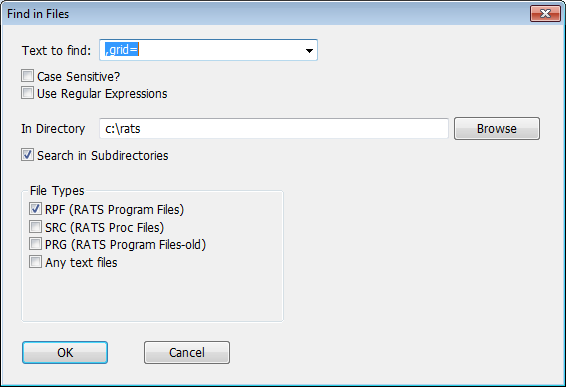
This is used for searching across the RATS example files, looking for a particular string of text or a regular expression. This can help you more easily locate programs which use a particular feature.
Text to Find
Enter the text you wish to find in this field. This is a "combo box", where the popup menu feature can be used to pick (again) a string that you've already tried to find. Note that the history for that is cleared when you quit RATS.
Case Sensitive
You can turn on this checkbox if you want the search to be only for matches to the exact case that you entered in Text to Find. Since RATS isn't case-sensitive, you will rarely want to use this.
Use Regular Expressions
You can turn on this checkbox if Text to Find forms a regular expression. For instance, with regular expressions, the search string ^\s*garch will only match the string "garch" if it's the first non-blank text on a line (and thus, presumably an instruction). In regular expressions, ^ matches the start of a line, \s* matches any number (including 0) of spaces or tabs. Without regular expressions, simply searching for garch will match the word in comments, in variable names like GARCHLOGL, etc. In forming a regular expression, be particularly careful about ( and ), which are special characters in regular expressions. If you need to match the actual ( or ) you have to "escape" it by using \( or \).
In Directory
This is the (base) directory for the search, which by default is the top directory in your procedure search path, which is generally the base directory for all the examples and procedures.
Search in Subdirectories
Turn on this checkbox if you want the search to include any subdirectories of the input directory. Usually, you will want this to be on, since the textbook examples and paper replications are in subdirectories, so this would be required to include them. The first time you search across all the subdirectories, it takes longer to build up the list. After the first search, it tends to go much faster.
File Types
Choose which file types you want to search. Generally, you should only want to look in the .RPF files, with .SRC included only if you are looking for examples of programming tools. The .PRG will only matter if you have your own older files with .PRG extensions (though we would recommend that you rename those).
Copyright © 2025 Thomas A. Doan