


If you are running a combined individual/team tournament, WinTD will allow you to print out "team rosters" to give to the coaches. These will allow them easily to verify the registration information for their players.
Team rosters (as printed by WinTD) are blank "wall charts," and include the player's names, USCF ID's, prize groups and ratings. In addition, it provides blank cells that the coaches can use to fill in the pairings and scores for their players. Note: This is very different from the "team rosters" that SwisSys produces.
A separate page is printed for each team which meets criteria which you set.
To create team rosters:
- Select the set of sections for which you want to print rosters. If you select more than one, WinTD will combine all players from a single "team" (those with matching team fields) onto a single roster, but will separate the players by section.
- Use Section-List Players-Combined Sections (if you want combined rosters), or Section-List Players. This will create one or more Players Windows.
- For each Players Window that you just created, use the Reports-Print Team Rosters operation. This will bring up the following dialog box:
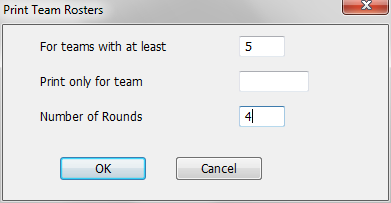
For Teams with at Least
Fill in a minimum number here that will generate a page. If you leave it blank, you have chosen 0 as the threshold, so any single player with a unique team ID will force out a page. For practical reasons, a number like 3 to 5 probably makes sense.
Print only for Team
If you fill this in, a roster is generated only for the single team that you listed.
Number of Rounds
This sets the number of blank cells in the grid.