|
Windows / Series List Windows |
RATS displays a Series List Window (or Data File Window, depending upon the use) when you
•open or create a RATS format data file (by doing File>Open or File>New)
•display a list of series stored in memory by doing View>Series Window.
•Use one of the Data Browsers, available with one of the Data Browser operations on the Data/Graphics menu.
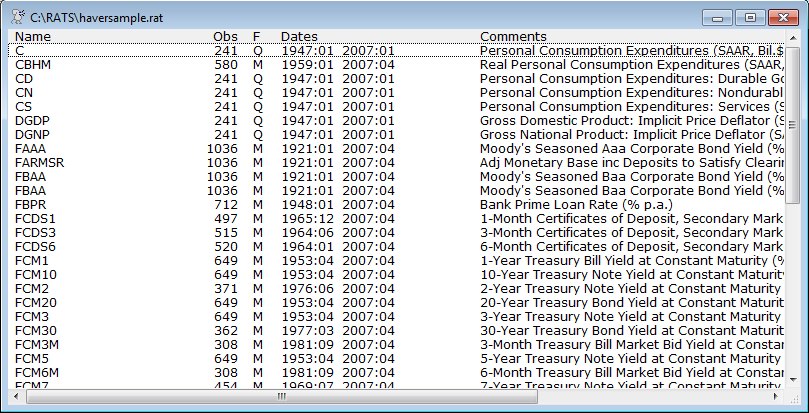
Here is a sample series list window for a RATS format file called HAVERSAMPLE.RAT:
In addition to showing you information about the series, series list windows allow you to do the following:
•View or edit a series by double-clicking on a series name (this displays a series editing window).
•Export series to a new file by selecting one or more series and doing File>Export.... Formats supported include RATS format, Excel, comma-separated text files, and more.
•Write series to a RATS format file by dragging series (or copy-and-pasting or cut-and-pasting) from one series list window to another. This works for copying series from memory to a RATS file and for copying series from one RATS file to another.
•Bring series into memory by dragging and dropping them onto the Series Window (displayed using View>Series Window).
•Quickly generate graphs and summary statistics using the toolbar icons or View Menu operations (see below).
•Generate a list (sent to the clipboard as text) of the series names (only) using Edit>Copy Names Only (on the main menu or the contextual menu). You can copy that back into an editor file for use in creating an instruction, or into another program.
•For a RATS file window, you can import data into the file from another data file by doing File>Import... (you must have the series list window as the "active" or front window—if you have a text window active, the Merge... operation is available instead, which is used to import text into a text window).
•Right-click on a series (or selected set of series) to access a pop-up menu of operations you can apply to the series, such as Cut or Export.
Toolbar Icons
When a Series List Window is active, RATS displays one of the following toolbars:
 when listing the series stored in memory
 when listing the series stored on a RATS file
These perform the following operations, which are also available on the View and File menus:
|
|
Shortcut for Edit>Select All. Selects (highlights) all the series in the window. |
|
|
For RATS format files, this brings up a dialog box that allows you to filter the list of series displayed on various criteria and change the sorting order of the display. |
|
|
Shortcut for Edit>Find. Searches for a particular numeric value. |
|
|
Shortcut for Edit>Undo. Undoes the last edit. |
|
|
Shortcut for Edit>Redo. Redoes the last edit. |
|
|
Import data from an external file. |
|
|
Export data to an external file |
|
|
Create a new series. |
|
|
Rename or change the comments of an existing series. (RATSData windows only) |
|
|
Produce a time series graph of the selected series |
|
|
Produce a histogram plot of the selected series (can only be applied to one series at a time) |
|
|
Produce Box plots for the selected series |
|
|
Produce a plot of the autocorrelations and partial autocorrelations for the series |
|
|
Produce basic descriptive statistics for the selected series |
|
|
Produce a covariance\correlation matrix (series in memory only) |
|
|
View the data in a series (same as double-clicking on a series) |
.png)
.png)
.png)
.png)
.png)


.png)


Copyright © 2026 Thomas A. Doan