


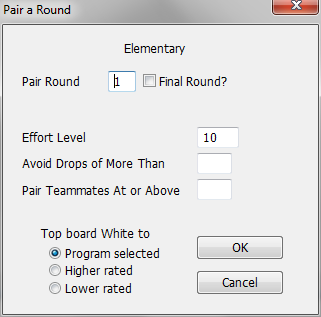
When you select the menu operation Section-Pair a Round, WinTD displays this dialog box for Swiss-style sections (the Round Robin version is shown later in this page):
Description
The name of the selected tournament section appears near the top of the dialog box ("Open" in this example). If you selected more than one section before doing Pair a Round, WinTD will automatically bring up a dialog box for the first section. If you hit OK, it will then bring the dialog for the next section, and so on. If you hit Cancel, WinTD cancels the pairing operation for that section and any subsequent sections. Sections that had already been paired (i.e. sections for which you had clicked on OK) remain paired--use Edit-Undo if you want to undo those pairings.
Most of fields will be missing when you are pairing a Round Robin section, as they apply only to Swiss System pairing.
Pair Round
The number of the round that you want to pair. WinTD will fill this in with what it expects to be the next round-you can change this if necessary.
Final Round?
Turn on this check box if you are pairing the final round of the tournament. If you are using WinTD's default color allocation procedure and are pairing the final round, WinTD will "flip a coin" whenever two players have an equal claim to a color. See Pairing System: Assigning Colors for more information.
Effort Level
This parameter allows you to control how hard WinTD will work when determining pairings. This now defaults to 10 which gets the pairings done in a reasonable time in almost any section. For relatively simple sections (for instance, with no teammate restrictions) the pairings will typically be optimally determined even with a level of 1. Even with more complicated sections, there usually isn't much to be gained above level 10.
Avoid Drops of More Than
You will normally want to leave this field blank. However, if you enter a score value, such as 1.5, in this field, WinTD will break all other pairing rules as needed to prevent dropping a player to a score group more than the specified amount lower than the player's score. See Pairing System: Drop/Raise Decisions for details.
Pair Teammates At or Above
If you are pairing the section with the "Pair Teammates" choice in the Add/Edit a Section dialog set to "No", this box will appear. You can use it to override the pairing restriction for high score groups only. If, for instance, you put in 5.0, WinTD will allow teammates to be paired in score groups 5.0 and above. It will still try to avoid pairing teammates, but will not drop two teammates into a lower score group to avoid pairing them.
Top Board White to
This appears only the first time you pair a section. If you choose Program Selected, WinTD will "flip a coin" to decide who gets White on the top board. If you have decided this yourself, put your choice in.
Please see Pairing System for details on the system used to pair players.
Pair a Round does not, by itself, produce any direct output. Once you've done it, you can display the pairings in a Games Window by selecting the menu operation Section-List Games-Current Round. Use the operation Reports-Print to print the games list as a pairing sheet.
Round Robin Sections
This is the Pair a Round dialog box for Round Robin sections:
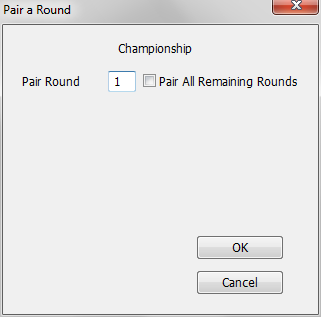
You can pair one round at a time, or turn on the "Pair All Remaining Rounds" check box to have WinTD automatically pair all the remaining rounds in the Round Robin schedule.