|
Wizards / Data Wizard: Other Formats |
Use this wizard to read data from files other than RATS format, including Excel and other spreadsheet formats, text files, and more.
When you select the Data (Other Formats) Wizard from the Data/Graphics menu, RATS will display a standard file dialog box which allows you to locate and click on the desired data file. Note: you should specify type of file you want to open using the "Files of Type" field before selecting a data file and hitting OK.
Once you have selected a file, RATS scans the file to determine as much as it can about the structure and contents, and then brings up will bring up a dialog box like this (this is from the file BERNDT.XLS in the examples)

If all the information is correct, you can simply click on OK to have RATS read in the data.
Otherwise, you can use the fields described below to adjust or correct settings before reading in the file.
Data Organization
This field tells RATS whether the file consists of
•series running down the page in columns (one column per series)
•series running across the page in rows
•single series spread across multiple rows. (You need a separate DATA instruction for each series on the file if that's the case).
•data for each time period spread over multiple lines.
You can check the preview (which initially shows the top corner of the data file) to see if you're correct.
Header Rows before Data/Labels
Use these fields if you want RATS to ignore a specified number of rows at the top of the file. Note: don't skip the row of series labels (names) at the top, unless you do not want RATS to use the names provided on the file. This controls the TOP option on the DATA instruction.
Columns to Skip
If you set this value to column number n, RATS will ignore the first n columns in the file. This can be used to ignore a column of dates if you want to treat the file as if it were undated, or to ignore series you don't want to read or other extraneous information. This controls the LEFT option on the DATA instruction.
Bottom Row, Right Column
These default to the last row and last column of information on the file or sheet. You can reduce the value of either or both to ignore columns on the right and/or rows at the bottom of the file. For example, if you set Right Column to 2, RATS only looks at the first 2 columns in the file or sheet. These control the BOTTOM and LEFT options on the DATA instruction.
Sheet
For an Excel workbook file containing more than one worksheet, you can use this field to identify the sheet you want to read. On a Matlab file, this is used to select the matrix to process.
Show/Hide Preview
By default, this shows a preview of the data file. Note that the Row x and Col x fields aren't part of the file. You can use Hide Preview to get rid of that, though there is probably little reason to ever do that.
Format of Date Strings
For files where dates are represented as a text string, this field allows you to specify the actual format for dates used in cases where it may be ambiguous (that is, if it could be "yy:mm" or "mm:yy"). Generally, RATS will get this correct, unless it's a very short data set.
File Dates
Use the Scan button to scan the file for date information. If the source file contains dates that RATS can recognize, RATS will display the detected frequency and starting date above the Scan button. It will show "Undated" if it does not find any date information it can process. If the file is undated, you can use the Set button in the Target Dates field to set the frequency and date range manually.
On this file, after doing the Scan, the dialog changes to the below
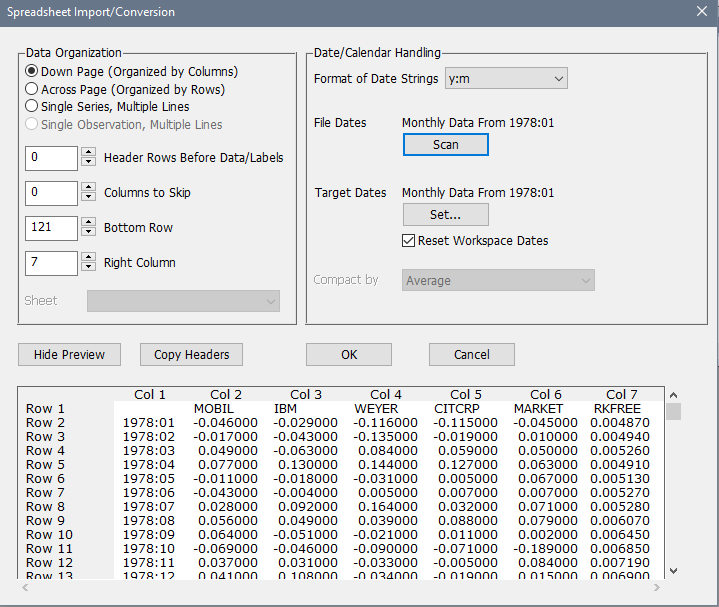
Target Dates
This sets the range of dates and the frequency for the series that will be stored in memory. Normally, these will match the range of dates (if available) on the source file. However, you can use the Set button to change that, if you only want to read a subset of the data, or want to read the data in at a different frequency (the DATA instruction will automatically compact or expand the data as needed, as long as the file contains recognizable dates).
Reset Workspace Dates
If you have already set a CALENDAR instruction in your program, the Data Wizard normally will not generate a new CALENDAR instruction. You can turn on this switch if you want the Wizard to generate a new calendar with the selected target frequency and starting date.
Click on OK when you are ready to continue.
If names for the series are provided on the file, RATS will generate (and execute if "Paste AND Execute" is turned on) the appropriate CALENDAR (if dated data), OPEN DATA, and DATA commands to read the data.
If file does not include series names (for instance, a "free format" text file), or if you chose to skip a row of existing series names in the file (most likely because they aren't legal RATS names), you will need to supply those. Or, you may want or need to override the names on the file, which may not be legal names, or may be too hard to understand (A191RX for GDP, for instance).
When RATS processes the first series on the file (regardless of whether the file has labels), or any time the file has an invalid name, it will display the following dialog box asking you to supply a corrected name.
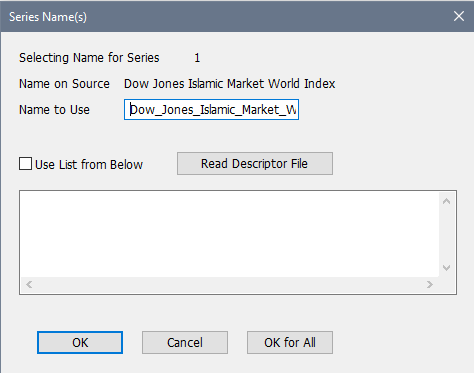
In this case, the name on the file had blanks in it, and an alert box about that was already displayed.
If you know that you have good, usable labels on the file, and don't need to override them, you can simply do the OK for All button and you won't be prompted on any of the other series as long as they do, indeed, have valid labels. Otherwise, you can
•type in the name you want to use in Name to Use box, and hit OK. It will move on to prompt you on the second series, and will continue as long as you just OK the series one at a time. (You can switch to OK for All anytime you don't need to provide a (proper) name for any of the rest).
•click on Use List from Below and type (or paste) in a list of all the names in the text field, then click on OK. It will take as many names as you listed. If there are extra fields on the file that aren't covered by your list, you'll get a new dialog box asking for the name of Series xx, where xx is the first series that hasn't received a name yet.
•push the Read Descriptor File button to read in a list of names from an another text file. That information is inserted into the text field. You can then edit that field to remove any information other than the desired names. Once you're ready, click on Use List from Below and continue as described in the bullet point above. This would generally be used if you have been given a plain text file (no labels) and a separate file with the descriptions of the columns.
Copyright © 2026 Thomas A. Doan