Dialog Box: Assign Board Numbers |
When you create a tournament section, WinTD allows you to set the starting board number for that section. If you wish to change the board numbering scheme, you can do it manually or automatically.
To manually change the starting board number for a section, go to the Sections Window and double-click on a section. From the Add/Edit a Section dialog box, change the board number and click on OK.
To automatically change the board numbers for a set of sections, go to the Sections Window and select the sections. Then do the menu operation Section>Assign Board Numbers... WinTD will display the following dialog box:
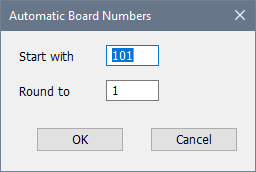
Start with
This is the number that will be assigned to the first board in the first section. Remaining boards will be numbered sequentially (except where rounded up as described below).
Round to
To get the number of the first board in the next section, WinTD takes the number of the last board in the previous section, rounds up to the next multiple of this value and adds one. Use a value of 1 here to have all boards numbered sequentially.
For example, suppose you have three sections in your tournament. Section A needs 12 boards, Section B needs 8, and Section C needs 5:
•If you use the value 1 for both Start with and Round to, the boards will be numbered sequentially. Section A will have boards 1 through 12, B will have boards 13 through 20, and C will have boards 21 through 25
•If you use the values 1 for Start with and 10 for Round to, Section A will have board numbers 1 through 12, Section B will have boards 21 through 28, and Section C will have boards 31 through 35.
Copyright © 2026 Thomas Doan