Dialog Box: Assign Byes |
When you use the menu operation Players>Assign Byes... or click the Assign Byes button in the Tournament Info tab of the Add/Edit a Player Dialog box to assign a bye to the selected player(s), WinTD displays the following:
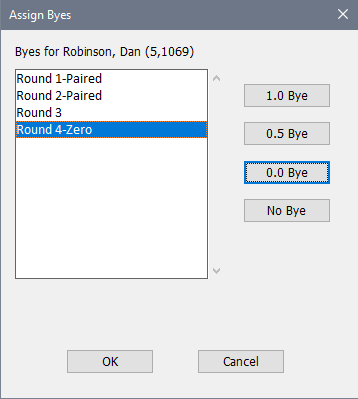
As you can see, the dialog box displays the player's name at the top, a list of rounds for you to choose from, and push buttons for assigning full-point, half-point, or zero-point byes. There is also a push-button for No Bye which can be used to clear a previously assigned bye. Click on the round in the scrolling list, then click on the button to set or reset the information. (You can only change one round at a time).
The word "Paired" in the list of rounds shows that the player has already been paired in a round. In this example, we're giving a zero point bye for Dan Robinson for round 4; he's already played rounds 1 and 2 and is planning to play round 3, but will miss round 4.
If we click on OK at this point, the bye will be assigned to the player. Clicking on Cancel would cancel the operation.
Copyright © 2026 Thomas Doan