Dialog Box: Add/Edit a Player |
The "Add/Edit a Player" dialog box allows you to add new players (or teams in a team tournament) to a tournament file or master player file, or change information for existing players. There are several ways to bring up this dialog box:
•To edit the information for an existing player, double-click on the player's name in a Player Window or Master Player Window.
•To add a new player to a master player file, select the operation Master(Player)>Add a Player.
•To add a new player to a tournament section, select the operation Players>Add a Player.
Note that you can use the Edit>Change Common Info... operation to quickly enter or change the Prize Group, Team Code, Club Code, and other information for several players at once.
WinTD actually uses several different versions of this dialog box depending on whether you are entering/editing a player stored on a tournament file, a player stored on a master file, or a team stored on a tournament file or a member of a team in a team vs team section. Also certain items (particularly tabs) are not always available.
There are quite a few fields available, most of which won't be used in any particular tournament. In general, leaving a field blank if you don't intend to use it will be the best choice.
Here is the dialog box used for adding/editing players in a tournament file. This includes the Tournament Info tab, which will not be present when editing a player on a Master Player file.
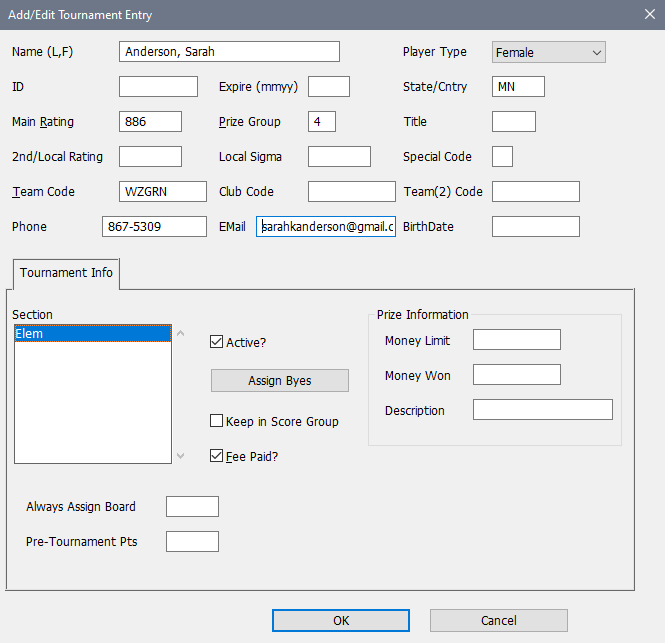
Name
Enter the full player or team name here. For individuals, use the format "Last name, First name."
Player Type
If the player record is for a team in a Team Tournament, be sure the "Team" button is selected. Note that you can't add anything but a "team" to a Team vs Team section, and you can't add a "team" to any section which isn't, so this choice will interact with the Section choice in the Tournament Info tab. For instance, if you are adding a player to a tournament and the tournament has no team vs team sections, the team choice won't be available. However, if you have a tournament which has a mix of team vs team and individual sections, the Player Type choices will include both "Team" and individual information ("Male", "Female" or "N/A") since it's common to fill out the header information before choosing the section.
For individuals, the rating report for FIDE tournaments includes the player's sex if available so you should collect and include that information.
ID
The player's US Chess or FIDE or other identification number. You choose what your intended meaning of this in the ID Field when you create a tournament section or master file.
Expire (mmyy)
Expiration date of the player's US Chess membership. Use the format "mmyy" for this value. Use "9999" for a life member.
State/Cntry
The player's state or country abbreviation. WinTD will accept up to three characters.
Main Rating
The player's "main" (usually only) rating. Leave this blank if the player is unrated—do not use 0. See Ratings and IDs.
Prize Group
The player's special prize group. This can be any two-character alphanumeric code. For example, you might use a player's age or grade level for scholastic tournaments.
Title
This provides space for up to three characters to show a title such as GM or IM.
2nd/Local Rating
The player's second or "local rating," if any, is in this field. See Ratings and IDs. If you want to compute your own "local ratings", see Local Ratings. If you want to assign an unrated player a rating for pairing purposes, put it in this field and use the "Main, Second if Unrated" choice for the Pairing Numbers by box in the Add/Edit a Section dialog box.
Local Sigma
The standard deviation of the player's local rating if you are using those.
Special Code
This is a one character tag which you can use as you see fit. For instance, you might use this to indicate players who are members of your club (and thus may be entitled to a reduced entry fee) or who are members of your state organization.
Team Code
If the player is a member of a team, enter the "abbreviated name" or code for the team here. This can be up to six characters. If a Master Team Window is open, a Team List tab will be included which will allow you to select the team code by double clicking a line in the list.
Club Code
Club codes offer you the option to avoid pairing players who are related, or from the same club for part or all of the tournament. The pairing options based upon Club Codes controlled by the Same Club Code box on the Pairing Preferences tab in the Add/Edit a Section dialog box. Club codes can be up to five characters. See Pairing System: Teams and Clubs for details.
Team(2) Code
Team(2) codes provide a separate set of team codes which can be used for prize purposes only—there are no pairing preferences based upon them. These do not have to be related at all to the main set of Team Codes, and, in fact, usually will not be.
Phone
If you want to collect a contact phone, you can enter that here. Note that Phone, Email and Birthdate are part of a master file, not tournament information, in the legacy formats and so aren't included when you are working with a legacy tournament.
If you want to collect a contact email, you can enter that here.
Birthdate
If you want to collect a birthdate (or birth year), you can enter that here. You can choose your own format for this, though either yyyy/mm/dd or just yyyy is probably the best choice.
This tab is only included when adding/editing a player on a tournament file.
.png)
Section
This box displays a scrolling list of the sections in the tournament. The section in which the player is currently entered will be highlighted. Clicking on a different section will move the player to that section (if permitted). Note that you cannot reassign a player with games in the current section. See How To: Move a Player to a New Section. Also, note that if the Player Type box above is incompatible with the type of section you are choosing (basically a team into an individual section or individual into a team section), you will be warned that you have to correct either the Section choice or the Player Type.
Active?
The "active" check box controls whether the player is active (checked in) or inactive (checked out) in the tournament. If the check box is turned on, the player is active. Note that this provides an alternative method of checking players in and out.
Assign Byes
This pops up the Assign Byes dialog box allowing you to enter byes for those who request them.
Keep in Score Group
If you turn this box on, WinTD will try to keep the player in his own score group when pairing; that is, another player will be selected to be dropped or raised (downfloated or upfloated) or to receive the forced bye). See Pairing System: Drop/Raise Decisions.
Fee Paid?
You can use the check box to indicate whether or not the player has paid his entry fees for the tournament. If you use this feature, you can use the Edit>Change Layout... operation on a Players Window to display a list of players who have not paid their entry fee. WinTD can't do the detailed accounting for you. It can help you flag people who owe you money.
Always Assign Board
If you have a player who needs some to play on a certain board because of a disability, you can put a particular board number in here and their games will be assigned to that board when a round is paired. Typically, that will be a board on an aisle.
Pre-Tournament Pts
If you want to "seed" in a certain number of points (perhaps from an earlier competition) that will be credited to this tournament for scoring purposes, you can put that in here.
Money Limit
If non-zero, this will provide an upper bound on the amount of money that this player can win. How the calculation is handled is described in Prizes with Limits.
Money Won
This can be filled in when you compute money prizes, or you can fill it in yourself.
Description
This is a text field which you can use to describe a prize won by this individual.
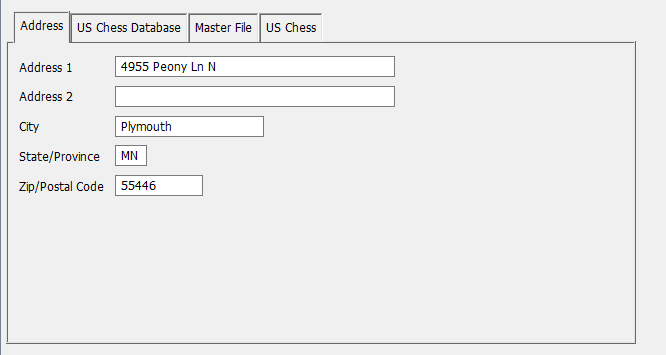
Address tab (Master Player File Only)
This tab is available only if you are adding/editing a player on a Master Player File. If you would like to keep mailing addresses, input address information into the boxes shown. (These are not used in running tournaments).
This shows the Team List tab, which will be included if you have a Team Window open. This is to help you fill in the Team Code field—if you locate the team name in the scrolling list and double-click on it, it will take the team code from the file on the selected line. You can use the Search button to locate a team based upon some string in the name or city.
If the team isn't in your file, you can use the Add a Team button to bring up the Add/Edit a Team dialog which can be used to add it to the open Team File.
.png)
This shows the US Chess Database tab. This will be present only if you have the US Chess database installed on your computer. The main part of the tab is a scrolling window with a display of the information from the database.
.png)
Sort by (Name or ID)
Pick how you want the display sorted. If you start typing (after clicking in the scrolling box), it will locate the first match for the text that you've typed so far. At the top left, it will show the current search stub. (You can't edit this; it responds as you type). For instance, here it's matching ONIS. If you need to make a correction, you can use a backspace to delete the final character.
Lookup
If you have put anything into the Name or ID fields in the header, the Lookup button will take the scrolling window to the (first) matching item in the database using the current Sort by. (If you only enter an ID, it will switch the Sort by to "ID", and if you only enter a Name, it will switch the Sort by to "Name"). If there is no exact match, it will be go to the first item that would sort after the value you enter. Note that because the US Chess database names are all upper case, the search string used for the name is whatever you put in converted to upper case as well.
Near Matches
This will scan the database looking for near matches to whatever you have in the Name box in the main part of the dialog. This is when you need to find an ID which might be associated with a slightly different spelling. Note that this can take a while. When completed, the scrolling list will be restricted to the close matches, determined by the similarities of the last name (which is expected to be close) and first name. It also looks for reversed first and last names. If you know the player's State code, you can greatly improve the matching capabilities by filling that in as well.
The US Chess tab will be available when you are editing a player from a tournament or a master file which includes the US Chess features.
.png)
ID
This will be the US chess ID. This is considered to be a separate field from the ID on the player's main page, which could also have a FIDE (or some other) ID. This is the only field on this which you might enter yourself—the others will almost always be updated based upon this ID field from the US Chess database.
Expire
US Chess expiration date in mmyy form (no slashes). Life is coded as 9999.
OTB Ratings
These are the three OTB (over-the-board) ratings. Blank means unrated (in that particular rating).
On-Line Ratings
These are the three on-line US Chess ratings. Blank means unrated (in that particular rating).
The FIDE Database tab will be available only if you have the FIDE database installed on your computer. The main part of the tab is a scrolling window with a display of the information from the database.
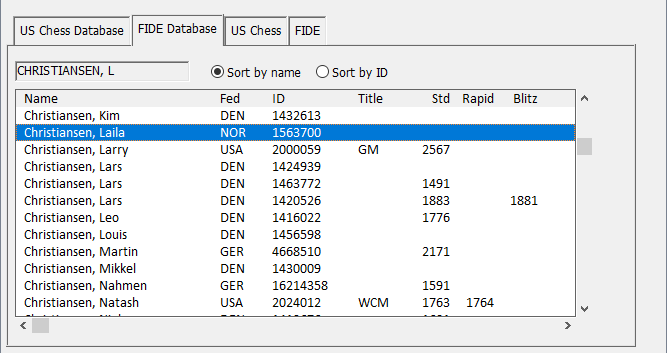
Sort by Name
Sort by ID
Pick how you want the display sorted. If you start typing, it will locate the first match for the text that you've typed so far. At the top left, it will show the current search stub. (You can't edit this, it responds as you type). For instance, here it's matching CHRISTIANSEN, L. If you need to make a correction to the search field, you can use a backspace to delete the final character.
The FIDE tab will be available when you are editing a player from a tournament or a master file which includes the FIDE features.
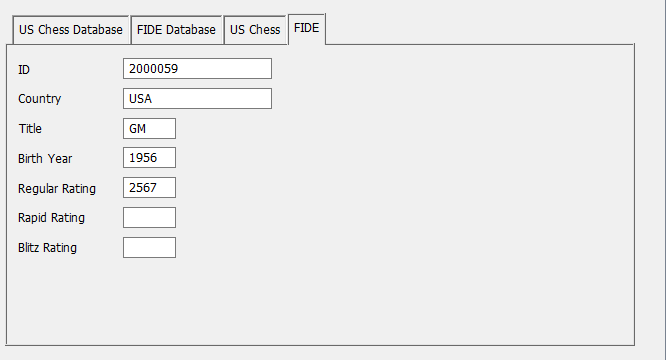
ID
This will be the FIDE ID. This is considered to be a separate field from the ID on the player's main page, which could also have a US Chess (or some other) ID. This is the only field on this which you might enter yourself—the others will almost always be updated based upon this ID field from the FIDE database.
Country
The FIDE country or federation represented by the player.
Title
The highest title earned. (GM > IM > WGM).
Birth Year
The four digit birth year.
Regular Rating
Rapid Rating
Blitz Rating
The three possible ratings. If blank, the player is unrated in that rating.
This will be included if you are editing a team in a team v team section. Note that you can also edit the team at the time you enter scores—the Board Results dialog has Edit Team buttons which pop up a dialog with the same functions as this tab.
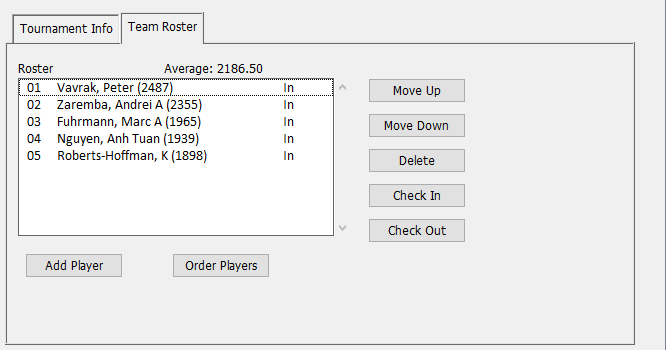
Add Player
This repeatedly brings up a special version of the Add/Edit a Player dialog box, which does not include the Tournament Info tab, since the team entry covers that.
The Team Code and Club Code boxes for the individual members of a team will have no effect within this tournament. However, matching the team ID for an individual with the team ID that you assigned to the team itself can help you in building a useful master file.
Double-Clicking on a Player
As with Add Player, this brings up the special version of the Add/Edit a Player dialog box allowing you to edit the player's information.
Order Players
Reorders the players based upon their ratings. If you have selected Play in Rating Order choice on the Team v Team tab in the Add/Edit a Section dialog box for this section, WinTD will automatically re-order the players as you add them, but if you don't have that checked on (which means that board orders are arbitrary) they will keep the order in which you add them. If players have the same rating (typically unrateds), WinTD will maintain their original order.
Move Up, Move Down
This shifts the selected individuals up or down a spot. Use this to put the roster into a particular order.
Delete
Deletes the selected individuals from the roster. Note that you can only do this if they have not yet played any games. If a player who has played games has to leave, you can withdraw him from the tournament using the Check Out button.
Check In
Click on this to check the selected player(s) back into the tournament.
Check Out
Use this to check the selected players out of the tournament (that is, withdraw them from the tournament). Players who have been checked out will continue to be listed on the roster, but WinTD will automatically skip them when it comes to assigning players to games in later rounds. You can use the Check In button to check them back into the tournament.
The Lichess tab will be available when you are editing a player from a tournament or a master file which includes Lichess features.
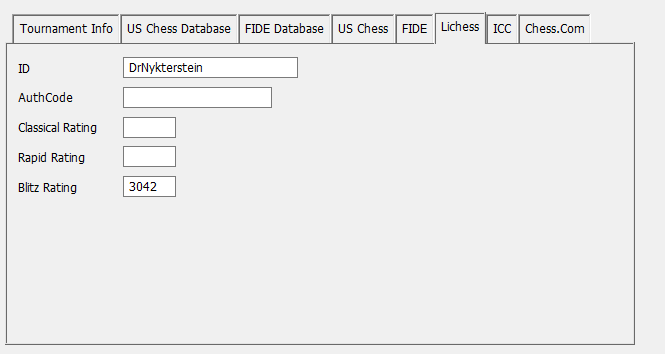
ID
This is the player's Lichess ID, which starts with a letter, and can contain letters, numbers and connector _'s. This is considered to be a separate field from the ID on the player's main page, which could also have a US Chess or FIDE ID (or for some other on-line system).
AuthCode
This is a special code which the user needs to generate and provide to a TD to allow the TD to force pairings (as opposed to merely issuing challenges).
Classical Rating
Rapid Rating
Blitz Rating
The three possible ratings. If blank, the player is unrated in that rating.
The ICC tab will be available when you are editing a player from a tournament or a master file which includes the ICC features.
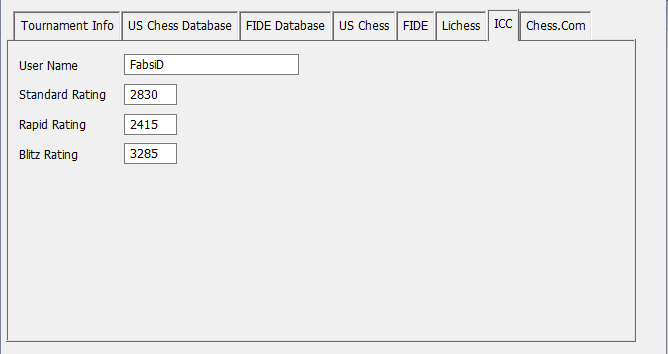
User Name
This is the player's ICC User Name. This has to start with a letter, can consist of letters and numbers and one (at most) connector _ and is limited to 15 characters. This is considered to be a separate field from the ID on the player's main page, which could also have a US Chess or FIDE ID (or for some other on-line system).
Standard Rating
Rapid Rating
Blitz Rating
The three possible ratings. If blank, the player is unrated in that rating.
The Chess.Com tab will be available when you are editing a player from a tournament or a master file which includes the Chess.com features.
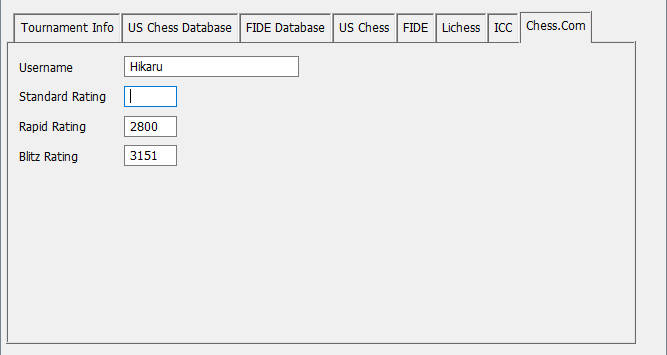
Username
This is the player's Chess.com Username. This has a maximum of 20 characters and cannot use .'s or spaces or certain other special marks. (_ and - are available as connectors). This is considered to be a separate field from the ID on the player's main page, which could also have a US Chess or FIDE ID (or for some other on-line system).
Standard Rating
Rapid Rating
Blitz Rating
The three possible ratings, though note that Chess.com doesn't have a rating for longer time controls ("Standard") and breaks the other ratings down by a finer set of time controls.
Copyright © 2026 Thomas Doan