Dialog Box: Board Results |
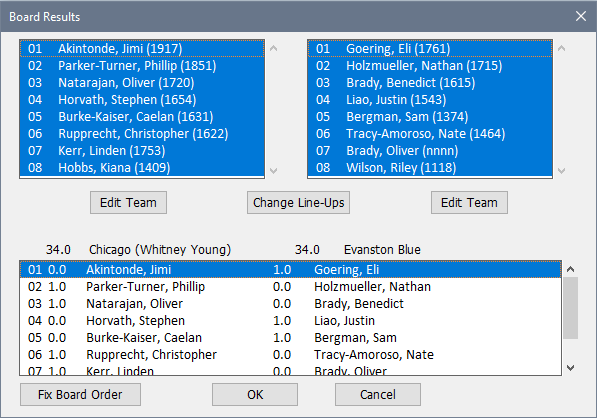
The Board Results dialog box allows you to enter the board-by-board results for team tournament matches. This dialog box appears when you double-click on a match in the Games Window for a team section (see How To: Enter Scores in Team Sections for details). Here is a sample:
Player List Fields
The top two fields in the box display the team rosters for the two teams, with the team playing White (on board one) on the left and the team playing Black on the right. The players currently selected to play in the match will be highlighted as shown above when the box first opens.
Edit Team
Clicking on one of the Edit Team buttons brings up the Team Setup dialog box for that team. This allows you to add or remove players, and change the board ordering. See To Make Substitutions below.
Change Line-Ups
Use this button to reset the individual game matchups whenever you make substitutions (use the Edit Team buttons first if you need to add players to a team or change the board ordering). See To Make Substitutions below.
Game List
This field lists the board-by-board matchups just like an ordinary Games Window. You use this list to enter game results using either the Quick Entry Keys or by double clicking a game to bring up the Game Result dialog box. Note that with quick keys, you are putting in the results for the team that is listed as white; similarly in the Game Result dialog, the player from the team that is white is listed first.
Using the Board Results dialog
When no score has been entered yet, WinTD sets the "rosters" for each team to the top available players, in order. If there are no substitutions, all you need to do is start entering scores (see below). If scores have already been entered for the games, WinTD restores the rosters that you put in before. If it turned out that there was a mistake in one or both of the rosters, you can fix it.
To make substitutions
In the Player List field, <Ctrl>+click on the player(s) that need to be removed to "de-select" them, and <Ctrl>+click on the players(s) that need to be added to select them. When you're ready, push the Change Line-Ups button. This will update the Game List field to display the new matchups.
Note that this dialog only allows you to substitute players in the order shown in the player lists: the first selected player on the list is assigned to board 1, the second selected player to board 2, and so on. If you need to change the ordering of the players or add or remove players from the team, first click on the appropriate Edit Team button, which brings up the Team Setup dialog box for that team. Once you've made the necessary changes, click on OK to return to the Board Results dialog box. If you changed the ordering of the players, you must click on the Change Line-Ups button to reset the game matchups.
By default, WinTD will always put the alternates on the bottom boards when you make substitutions, shifting all players up to fill any gaps. The Don't Shift on Subs setting on the Team v Team tab of the Add/Edit a Section dialog boxcan be used if the alternates are to substitute directly for a missing board.
For example, suppose you have four boards, and you need to substitute for the player on board number 1. You would <Ctrl>+click on the board 1 player (to "deselect" that player), then <Ctrl>+click on the reserve player to be substituted, and finally click on the Change Line-Ups button to make the substitution. By default, WinTD would shift the players from boards 2 through 4 up to boards 1 through 3, and assign the reserve player to board 4 (thus maintaining the order specified in the Team Setup dialog box). If the Don't Shift on Subs switch is turned on, however, the reserve player will be substituted directly onto board 1 and the other three players will remain on boards 2 through 4.
To enter scores
The list of games at the bottom of the dialog box works much like a Games Window. You can either double-click on a game to bring up the Game Result dialog box, or, you can use Quick Keys. As you change the results, WinTD will automatically update the teams' scores, which are displayed next to the team names. (This sample is from a board-weighted team section, where board 1 counts 12, bound 2 11, etc. hence the high scores). The dialog box will be set up so you can use Quick Keys right away; that is, if you don't need to make any substitutions, you can just start typing "W", "L", "D", etc., to put in results. If you enter all results by Quick Keys, you will be able to hit <Enter> when you're done to exit the dialog.
However, if you make any roster changes, you will have to click on a game first before you can use Quick Keys.
When you're done with this dialog box, hit <Enter>, click OK and WinTD will automatically select the proper result for the match result in the main game dialog box (this would be a drawn match). Click OK in that dialog to save the results.
Copyright © 2026 Thomas Doan