Dialog Box: Select Import Fields |
The "Select Import Fields" dialog is brought up when you are importing either tournament player information (Section>Import Players...) or master file player information (Master(Player)>Import Data File...). These use the same dialog box, but the Tournament-Specific Information items are only enabled if you're doing the tournament player information.
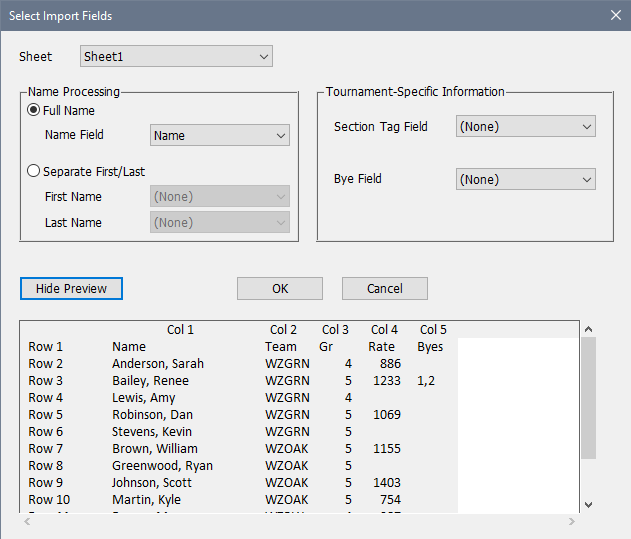
Sheet
If you're importing from a spreadsheet that has multiple worksheets, you can choose the one that you want using this.
Name Processing
You have two options for handling the players' names. If your file has a field with complete names, choose the first of the two radio buttons (Full Name). Then, in the Name Field pulldown select the field on the file that has the full name. If there is a "Name" field on the file (which we have here), the dialog will "guess" that that's the one that you want.
If your file has separate first and last names, choose the second of the two radio buttons (Separate First/Last) and from the First Name and Last Name pulldowns select the field on the file with the first name and the last name. If there is a "First" or "First Name" field on the file, that will be guessed as the choice, and the same for "Last" or "Last Name".
Tournament-Specific Information
These are only active if you are importing tournament player information, not master player file information.
Section Tag Field
Select the field (if any) which you are using as the section key field for this import. See How To: Import Tournament Entries for a description of how you set up the tournament to use this field. If you don't select a tag field, all players on the file will be imported into the currently selected section. If you do select a tag field, any player whose key field doesn't match any of the import tags on the section will not be imported. For instance, for a blitz section, you could code the players to be included in the Blitz section as "Y" and leave the others blank, or set to "N" (as long as none of your sections use an "N" import tag). The players with blanks or "N" values will be skipped in the import.
Bye Field
Select the field (if any) which has lists of bye rounds. If a player requests more than one, they can be separated by spaces or commas (or both). Note that all are treated as half-point byes. If you restrict the number of half-point byes or the rounds when they can be taken, you will have to manually change the ones that should be zero-point byes. You can do that by either Changing the Game Result or by Assigning Byes. (The easiest way to do this in practice is to use the third choice in the "Assigning Byes" how-to: do a player list which shows the rounds and double-click on each half-point byes that needs to be changed.)
Show Preview/Hide Preview
This will actually be a Show Preview button when the dialog first comes up. If you click this, it will insert a preview of the file contents at the bottom of the dialog (as is shown above). You can use this if you're not sure of the correct field names. The preview is scrollable in both directions. If you are showing the preview, the button changes to Hide Preview (as above) which, if you click on it, will remove the preview area, though there's generally no reason to ever do that.
Copyright © 2026 Thomas Doan