How To: Import Tournament Entries |
WinTD can import tournament entries from a spreadsheet or text file. You can maintain your tournament data on a spreadsheet and import it all in a single step, including assignment of players to the correct sections and assignment of pre-requested byes. Before you use Section>Import Players to pull the information off the file, you will need to create a tournament file with the sections you need. As described under Import Tags below, the import file can have players from multiple sections if the information on that is properly "tagged" in the file (and you use the matching tags in setting up the sections).
Information Fields
Text files can be comma- or tab-delimited. Spreadsheets can be in Excel XLS or XLSX or Lotus WKS formats. DBF (dBase) files are also permitted. You can have multiple worksheets in a single spreadsheet and can choose which to use for input.
The first row of the file must consist of labels identifying the type of information provided by each column. Under that, you have one row per player. Other than the names, section keys and the bye field (described below), all the other fields that WinTD processes need to have fairly strict field names, and data formats. You can have any number of these fields in any order. You can also have other fields with different column names (or no names at all)—those will be ignored in the import process.
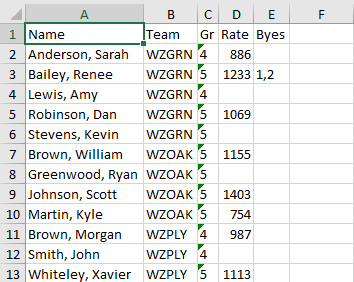
See the example below.
Import Tags: Assigning Players to Sections
If you don't use "Import Tags", all players will be assigned to the currently selected section. However, if you have a multiple section tournament, you can collect all entries into a single spreadsheet and use Import Tags to separate them into sections.
To use these, you first need to give each section a unique Import Tag which is assigned to the section in the Add/Edit a Section dialog box. This is a single case-sensitive character for the old style PTO file, and up to three characters, also case-sensitive, for the newer PTOZ style. In your spreadsheet or text file, you need a field (column) which uses these tags to show the players' sections. For instance, if you have a five-section main event, you could put import tags of A, B, C, D and E in a column called "Section" in your spreadsheet. As long as these tags match those specified in the Add/Edit a Section dialog boxes for the 5 sections, the players can automatically be assigned to the correct sections.
If you have several events, you can use separate fields in the spreadsheet to show entries in each. Suppose you have a side Blitz tournament in addition to the five-section main event described above. In addition to the "Section" column, you could add another field called "Blitz", and use an import tag of "Y" to denote the Blitz players. You do a separate import for each; one will key off the "Section" field, the other off the "Blitz."
Note, by the way, that your section tags only have to be distinct within a single section key field. If you have several side events, you need a separate key field for each event, but you can use "Y" to show an entry for each of them. Also note that the tags are case sensitive, so "A" and "a" are considered to be different tags.
Bye Field
If you want WinTD to process bye requests from the spreadsheet, include a field with bye information coded into it. For a single bye, just provide the round number (as a text or number field). For multiple byes, separate the requested rounds by spaces or commas. You can also use start-end notation for a range of rounds. Examples are 6 (round six only); 2,4,6 (rounds 2, 4 and 6), 7-9 (rounds seven through nine). Note that WinTD will make all requested byes ½ pointers. You may need to go through the player records to correct these if some of these might be required to be changed to zero or full points.
Importing Data
Whatever you do, make sure that you do a trial run with the file before tournament day.
1.Create your spreadsheet as described above.
2.Create a tournament file with the sections needed. If you're going to be using several computers, you can create separate files, or files on different machines, and selectively import player information into them. However, our recommendation is that you initially bring the entire tournament into a single WinTD file, and make copies of the full file. See How To: Use More Than One Computer for more.
3.Use the Section>Import Players operation. Choose the file format and file name. WinTD will then pop up the Select Import Fields dialog. Follow that link for the remaining instructions.
This uses the Name, Team, Gr (prize group or grade), Rate (main rating) and also uses a bye field—Renee Bailey has arranged for byes for rounds 1 and 2. Note that the unrateds (such as Amy Lewis) have blank cells for the Rate field, not zeros.
Copyright © 2026 Thomas Doan