Dialog Box: Team Setup |
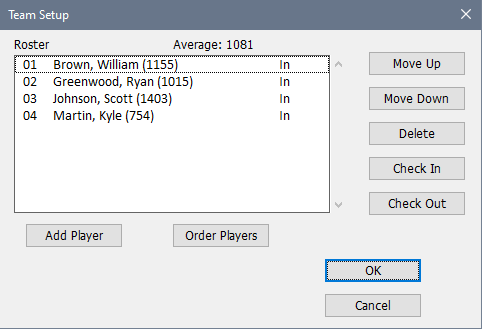
The Team Setup dialog box is used to list or edit the players currently assigned to a team and their board order in a Team v Team tournament.This is popped up from the Board Results dialog if you do one of the Edit Team buttons, and is basically the same design as the Team Roster tab in the Add/Edit a Player dialog box.
Add Player
This repeatedly brings up a special version of the Add/Edit a Player dialog box, which does not include the Tournament Info tab, since the team entry covers that.
The Team Code and Club Code boxes for the individual members of a team will have no effect within this tournament. However, matching the team ID for an individual with the team ID that you assigned to the team itself can help you in building a useful master file.
Double-Clicking on a Player
As with Add Player, this brings up the special version of the Add/Edit a Player dialog box allowing you to edit the player's information.
Order Players
Reorders the players based upon their ratings. If you have selected Play in Rating Order choice on the Team v Team tab in the Add/Edit a Section dialog box for this section, WinTD will automatically re-order the players as you add them, but if you don't have that checked on (which means that board orders are arbitrary) they will keep the order in which you add them. If players have the same rating (typically unrateds), WinTD will maintain their original order.
Move Up, Move Down
This shifts the selected individuals up or down a spot. Use this to put the roster into a particular order.
Delete
Deletes the selected individuals from the roster. Note that you can only do this if they have not yet played any games. If a player who has played games has to leave, you can withdraw him from the tournament using the Check Out button.
Check In
Click on this to check the selected player(s) back into the tournament.
Check Out
Use this to check the selected players out of the tournament (that is, withdraw them from the tournament). Players who have been checked out will continue to be listed on the roster, but WinTD will automatically skip them when it comes to assigning players to games in later rounds. You can use the Check In button to check them back into the tournament.
Copyright © 2026 Thomas Doan