


This dialog box is brought up when you do the Edit-Change Common Info... operation when either a Player window or a Master(Player) window is open.
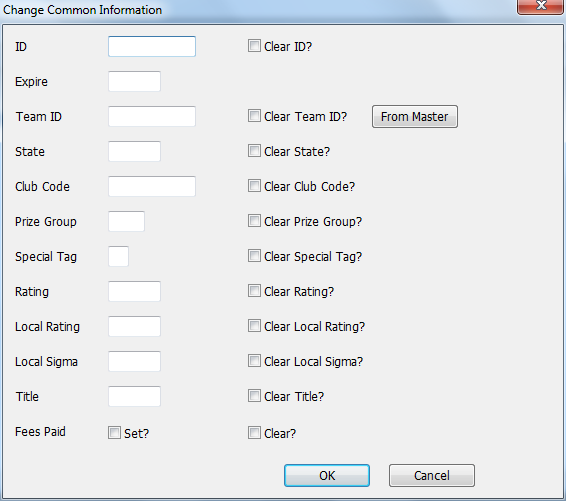
This allows you to quickly change the contents of various information fields for all the selected teams. Any information you supply here will be copied to all of the selected player records when you click on OK. For fields which are left blank, no changes will be made to the corresponding team records. If you turn on the "Clear" switch for any of these fields, the corresponding fields in each selected player record will be cleared out (erased and left blank) when you click on OK.
For example, if you use the Prize Group field to store the current grade for scholastic players, you can use this operation to quickly change the grade number for a group of players in a master file at the beginning of a new school year (e.g., to mark all 11th graders as 12th graders). Sort the master file By Group/Grade, select everyone in a grade and do Change Common Info. (Of course, you need to start with the highest grade or you'll turn 10th graders into 11th graders before you've changed the 11th graders).
The individual fields are described below:
ID
Expire
Clear ID?
For players who have purchased a USCF membership at this tournament, you can simplify your record keeping by putting in your affiliate ID for the USCF ID and the current month for the expiration. WinTD will never print the affiliate ID in any of the reports (it's easy to tell the difference: regular ID's are eight digits, the affiliate ID's are a letter followed by seven digits), but the players assigned such an ID (and given a expiration date) will no longer be listed as non-members.
Turning on Clear ID sets to blank both the ID's and expiration dates for all the players chosen.
Team ID
Clear Team ID?
From Master (only if you have a Team Window open)
If you put any information into the Team ID field, all players selected will have their team ID changed to that. From Master will pop up the current list of team names from the Team Window. See Team Tournaments for details on team and combined tournaments.
Clear Team ID sets to blanks the team ID's for all the players selected.
State
Clear State
This allows you to set or change the state field (at most three characters) for all selected players. Clear State sets to blanks the State field for all the players selected.
Club Code
Clear Club Code
If you put any information in the Club Code field, all players selected will have their Club Code changed to that. Clear Club Code sets to blanks the Club codes for all the players selected.
Prize Group
Clear Prize Group
This allows you to set or change the prize group field for all selected players. Clear Prize Group sets to blanks the Prize Group fields for all the players selected.
Special Tag
Clear Special Tag
This allows you to set or change the "special" (single character) added tag for classifying players. Clear Special Tag sets to blanks the special fields for all the players selected.
Local Rating
Clear Local Rating
If you put a value into the Local Rating box, all players selected will have that information changed. Clear Local Rating eliminates the local rating information for the selected players. See Local Ratings for details.
Local Sigma
Clear Local Sigma
If you put a value into the Local Sigma box, all players selected will have that information changed. (The Local Sigma measures how imprecise the current estimate of the rating is for a player). Clear Local Sigma eliminates the local sigma information for the selected players. See Local Ratings for details.
Title
Clear Title
This allows you to set or change the Title field for all selected players. Clear Title sets to blanks the Title field for all the players selected.
Set Fee Paid? (only for Players Windows)
Clear Fee Paid? (only for Players Windows)
If you click Set Fee Paid?, all players selected will be changed to show them having paid their fees. Clear Fee Paid? changes them to show them still owing fees.