


Team windows display the teams stored on a master Team File. Note that team files are only used for combined individual/team--they are not used with full "team" tournaments. See Team Tournaments for details.
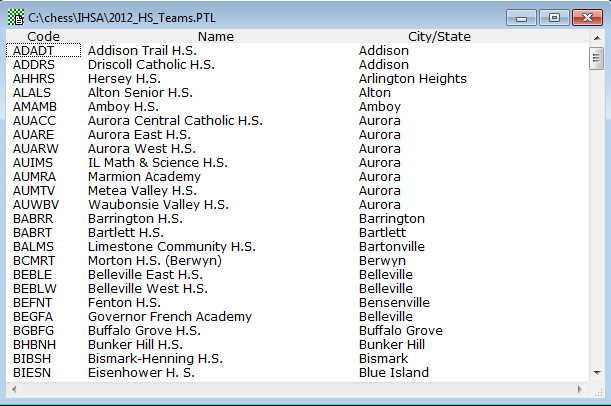
Here is a sample team window:
Description
The window displays each team's abbreviated name, full name, and city and state. By default, they're sorted alphabetically. You can add a new team using the Master(Team)-Add a Team... operation from the menu. To view or edit the detailed information for a team, just double-click on an existing team name.
You can use Edit-Change Layout to alter the appearance of the window or the sort order.
Opening a Team Window
WinTD displays a Team Window whenever you open an existing team list file, or create a new team list file by selecting Open Team List... or New Team List..., respectively, from the Master(Team) menu.
Double Clicking
Double-clicking on a team brings up the Edit Team Info Dialog Box, which allows you to edit the information for that team.
Menu Operations
The Add a Team... and Convert Data File operations on the Master(Team) menu are only enabled when a Team Window is active.
Drag and Drop
You can Drag-and-drop teams from one Team Window to another. This copies (rather than moves) the teams to the second team file.
Keystrokes
You can use the standard cursor controls to move around the window. If you type in letters, the window will scroll to the first team whose name matches the characters typed.
Toolbar Icons
None available.
Export
You can use the File-Export operation to export information from a Team Window to a new file in comma- or tab-delimited text, WKS, Excel (XLS or XLSX), or HTML formats.
Cut/Copy/Paste/Clear
To move or copy teams from one team file to another, select the teams and do Edit-Cut or Edit-Copy, then switch to another Team Window and do Edit-Paste. Also, you can Cut or Copy information from a Team window and paste it into another application. The data is copied to the clipboard in WK1 and DIF spreadsheet formats, as well as in tab-delimited text format. So, if you paste the information into a spreadsheet program, you will get a table of information with each piece of data (e.g., team name, address, etc.) in its own cell, allowing you to do your own sorts or formatted reports. Or, paste in text format into applications such as text-editors, word-processors, or e-mail programs for formatting and distributing reports, creating mailing lists, etc. See Export for an alternative method of exporting information.
WinTD Help Contents
Getting Started: The WinTD Interface
Team Files
How To: Add Players to a Team
How To: Add Teams to a Team Section
How To: Change Board Orders of a Team
How To: Create a Team Tournament Section
How To: Create Reports in HTML (Web) Format
How To: Enter Scores in Team Sections
How To: List Individuals in a Team Section
How To: Show/Print Team Standings (combined tournaments)
How To: Show/Print Team Standings (team tournament)
How To: Use Master Files for Team Tournaments
How To: Use Seedings Not Ratings
Team Tournaments
Dialog Box: Add/Edit a Section
Dialog Box: Add/Edit a Team
Dialog Box: Board Results
Dialog Box: Board Weights
Dialog Box: Team Scoresheets
Dialog Box: Team Setup
Samples: Team Pairing Sheets
Samples: Team Standings