


Players Windows display lists of the players entered in a tournament. From a Players Window, you can edit player information, print a list of the players in a tournament, check players in and out, edit player information, assign byes, and more. Here is a sample Players Window:
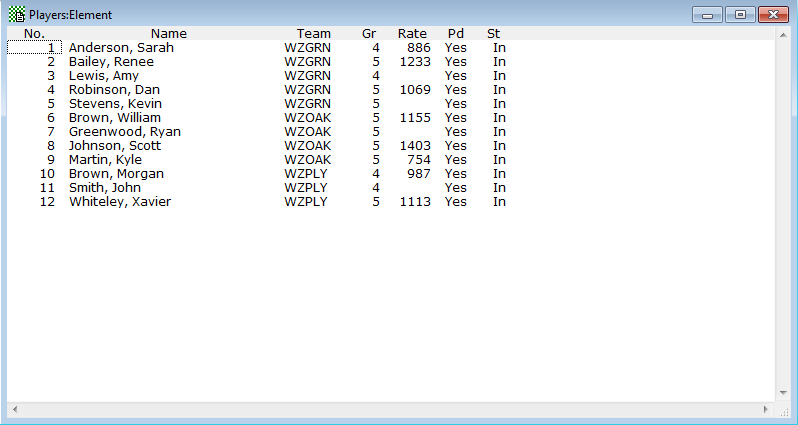
This shows players in the "Element" section of our sample tournament. The window displays each player's name, team, prize group, rating, status (checked In or Out), and whether or not they have paid the entry fee.
The Edit-Change Layout operation allows you to customize the organization and appearance of Players windows to suit the task at hand. For example, the layout above is useful for simply finding out who has checked in and paid their fees, while the layout shown below is useful for checking current standings or correcting game results:
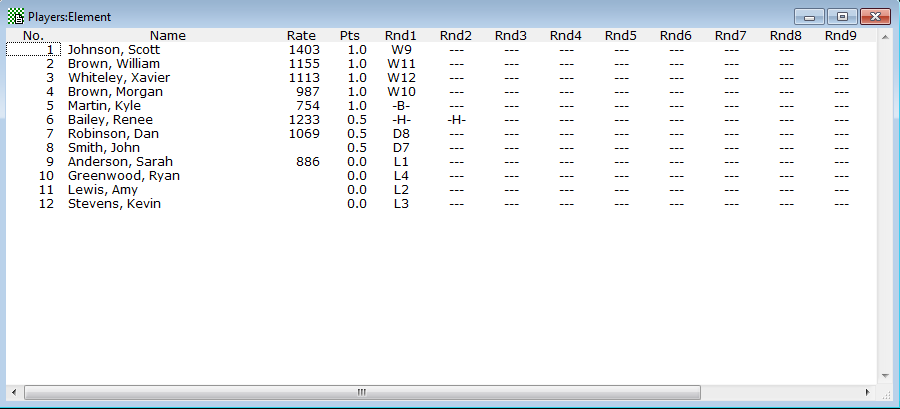
We've set this window up to display each player's name, prize group, current points, and a result from the first round. The list is sorted by current standings.
WinTD uses the following one-letter codes to denote results in the "rounds" columns: W=win, L=loss, D=draw, A=game in progress or adjourned, B=full-point bye, H=half-point bye, N=arranged zero point bye, Z=draw by forfeit, F=loss by forfeit, X=win by forfeit (the choice of Z for draw by forfeit is for compatibility with USCF's reports).
The number following the letter indicates the opponent played, according to the numbers displayed in the left hand column of the window. Note that the numbering depends on the way the window is currently sorted (controlled using Change Layout).
For example, you can see that Johnson beat Anderson, Martin got a first round (forced) bye due to the odd number of players, Bailey had arranged for 1/2 point byes for rounds one and two, etc.
Opening a Players Window
To open a Players Window, select a section or sections from the Sections Window and then do the Section-List Players, or click on the "List Players" icon (see below).
Double Clicking
Double-clicking anywhere except in a Rounds column brings up the Add/Edit a Player Dialog Box, which allows you to edit the information for the selected player. Double-clicking in a Rounds column brings up the Enter Game Results dialog box, which allows you to enter or change a game result.
Menu Operations
Except for Add a Player..., the operations on the Players menu are only enabled when a Players Window is open. Furthermore, most of the other operations are only enabled when you have selected one or more players from the active Players Window (since these operations are applied to the selected players).
Drag and Drop
Drag-and-drop is enabled for tournament Players Windows:
You can move players from one section to another by dragging them from one Players Window and dropping them onto a Players Window for a different section, or dropping them onto a different section in the Sections Window.
You can add players to a section by dragging from a Master Player Window and dropping on a Players Window.
You can copy players from the tournament file to a master player file by dragging-and-dropping players from the tournament Players Window to a Master Player Window.
Note: a Players Window is only a target for drag and drop if it is the list for a single section. You cannot drop onto a "combined sections" list.
Keystrokes
In addition to cursor controls, if the window is sorted by name or by team (see Change Layout Dialog Box), typing in letters will cause a search for the first name (or team) that begins with the characters typed. For instance, if you type in "JO", the window will be positioned at the first name that start with JO (case is ignored). If you start to look for Johnson, and realize that you really wanted Smith, hit <Esc> (or click the mouse) to clear the keystroke buffer before you start to type SM.... Otherwise, WinTD will just keep adding letters to your old search string.
Toolbar Icons
When a Players Window is active, WinTD displays the following toolbar icon:
 Prints a list of the players in the Players Window. This is equivalent to the Reports-Print Window operation.
 Marks the selected players as active, or "checked in" to the tournament. See Checking Players In and Out for details.
 Marks the selected players as inactive, or "checked out". See Checking Players In and Out for details.
 Brings the Sections Window for this tournament to the front (i.e. makes it active).
 Sorts the active Players Window by player name.
 Sorts the active Players Window by team name.
 Brings up the Change Layout dialog box. This is equivalent to the Edit-Change Layout operation.
 This is the "Refresh" button. It refreshes the contents of the current window to reflect any changes to scores, standings, etc.
Export
You can use the File-Export operation to export information from a Players Window to a new file in comma- or tab-delimited text, WKS, Excel (XLS or XLSX) or HTML formats.
Cut/Copy/Paste/Clear
Use Cut or Clear (on the Edit menu) to remove the selected players from a tournament. If you use Cut, then you can do Paste in another Players Window to move the players to the new section (this is an alternative to drag and drop).
You can also Copy from one Players Window, then Paste into another. This duplicates the player's entry in the other section (i.e. the player will appear in both sections). Don't do this unless you are trying to deal with a special situation, such as a cross-section pairing.
Finally, you can Cut or Copy players from a Players window and paste the information into another application. The data is copied to the clipboard in WK1 and DIF spreadsheet formats, as well as in tab-delimited text format. So, if you paste the information into a spreadsheet program, you will get a table of information with each piece of data (e.g., player names, ID's, ratings, etc.) in its own cell, allowing you to do your own sorts or formatted reports. Or, paste into applications such as text-editors, word-processors, or e-mail programs for formatting and distributing reports, creating mailing lists, etc. See File-Export... for an alternative method of exporting information.
Notes
- To list players from more than one section in a single window, use the Section-List Players-Combined Sections operation.
- You can automatically close all open Players windows by selecting Window-Close Player Windows.