


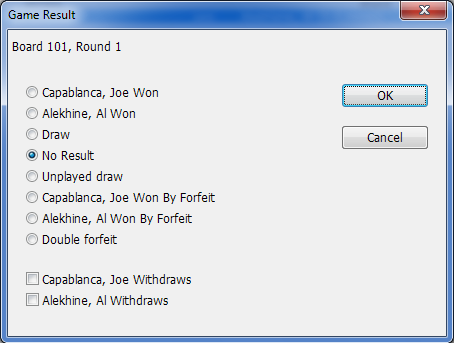
The Game Result dialog box allows you to enter, change, or view the result of a game:
Entering Results
WinTD will bring up this dialog box whenever you do one of the following
 double-click on a game in a Games Window.
 double-click on a game field in a Players Window.
 select a game in a Games Window, and do Enter Scores... from the Games menu.
 if you type an "F" (for forfeits) while using Quick Keys to enter results.
 if you enter (using Quick Keys) a result that differs from a result already entered for that game.
As you can see, this dialog box provides radio buttons for the various possible outcomes of the game: a win by either player, a draw, an unplayed draw, a forfeit win by either player, a double forfeit, or no result. To enter a result, click on the appropriate radio button and click on OK.
The player listed on the first line (Capablanca in this example) played White.
Viewing/Changing Results
If a result has already been entered, this will be shown by the position of the radio button when the dialog box appears (i.e. if a draw result had already been entered, the "Draw" radio button would be on when the dialog box opens). You can change the result by simply clicking on a different radio button and hitting OK.
Forfeits
A "forfeit" here refers to an unplayed game. A time forfeit is scored as a regular win or loss.
Withdrawals
You can use this dialog box to withdraw (check out) players as well--just turn on the check box for the player who is withdrawing. If necessary, you can use the check in operation to put withdrawn players back into the tournament.
Note that WinTD will automatically turn on the "player withdraws" check box for any player who forfeits. If you don't want that player withdrawn, be sure to turn off the withdrawal check box before clicking on OK.
Note: You can also enter game results using the Quick Entry keys.