Getting Started: Using the US Chess Database |
Because the full worked example wasn't done with real players, we couldn't pull their information out of the US Chess database. In general, the only difference is in the phase of adding the players.
Before you do this, you must first have the US Chess database installed on your computer.
Step 1: You need to point WinTD towards the directory which will hold the database—this is done with the US Chess>US Chess Directory... operation. Historically, that is installed in the c:\tnmtadmt directory under Windows, though you can put it elsewhere (somewhere in your documents folder is probably a good choice).
Step 2: Download the database using US Chess>Download US Chess Database... Choose the one that will be in effect when you hold the tournament—the scrolling list includes the next month from now, which is usually available around the 20th of the current month. Note that you can start putting in entries before the database that you will actually use for the tournament is available—you can update the ratings and expiration dates based upon a later download using US Chess>Update From Database.
Note that we have a sample tournament called SampleUSChess.ptoz which has the tournament and section already set up—if you want to skip those steps, open that file and go to Step 5.
Step 3: Create a new tournament, but this time include US Chess (ratings/ids) in the Features.

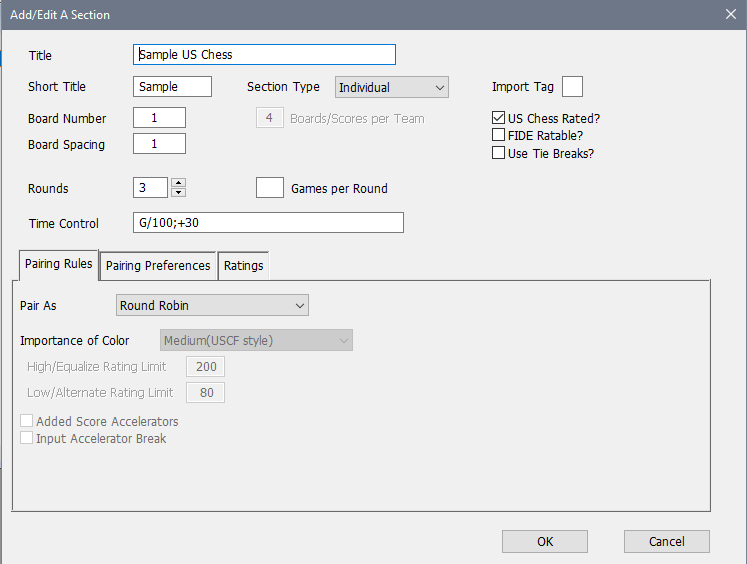
Step 4: Create a section. We're making this a 3 round 4 player Round Robin. In the header, we provide a Title and Short Title, change the Board Number to 1, Rounds to 3, and input the Time Control. In the top right, we check the US Chess Rated? box.
In the Pairing Rules tab, we choose "Round Robin" in the Pair As box, which disables everything else, since the round robin has fixed pairing rules (other than randomizing players).
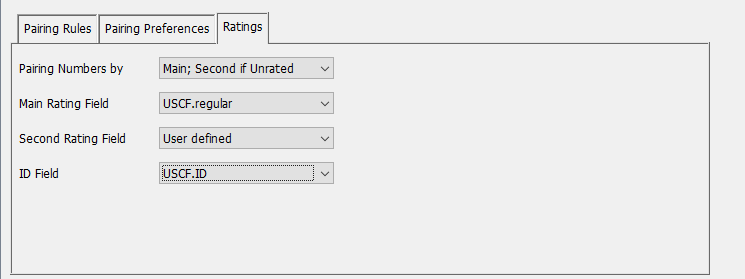
On the Ratings tab, we choose "USCF.regular" as the Main Rating Field and "USCF.ID" as the ID Field.
Step 5: We will have four players.
Caruana, Fabiano 12743305
So, Wesley 13145890
Onischuk, Alexander 12625186
Nakamura, Hikaru 12641216
We need to enter them into the tournament. We'll show several ways to do this.
Step 5—Using Name: Select the Players>Add a Player... operation. Type "Caruana" into the Name field, open the US Chess Database tab, and push the Lookup button. This will point the database to the first match with "Caruana". Note that the information on the database is all upper case—whatever you put into the Name box will be converted when doing the lookup. Also note that the database uses a space after the , separating the names, and you need to include that if you are entering more than just the last name.
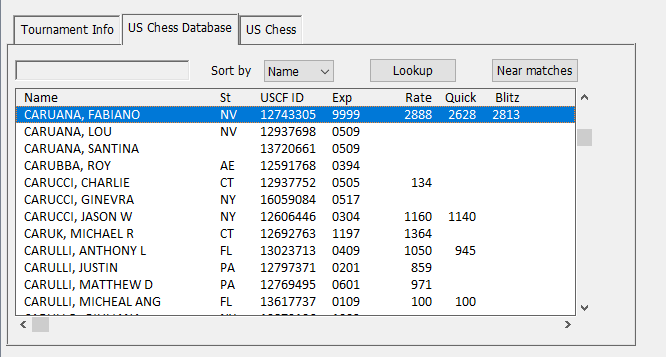
Double-click on the "CARUANA, FABIANO" line the header information will be replaced with whatever the current information is on the US Chess database:
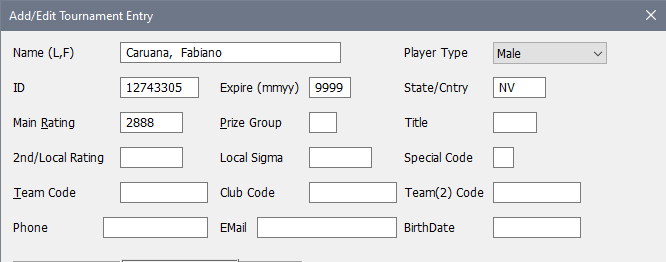
Note that only a handful of fields will be filled in off the US Chess database. For this tournament, we won't need anything else, but in other tournaments, you might have to fill in things like the Team Code box and might want to fill in such things as Phone and EMail. When you are finished with any of the additional information, click the OK at the bottom which adds the player to the tournament.
Note well that there may also be important information in the Tournament Info tab—for instance, that's where the Assign Byes button is if you need to process bye requests and if you are running a tournament with multiple sections, that's where the scroll box is for choosing the section for the players, so you may need to also open that before you OK an entry just to make sure it's correct.
Step 5—Using ID: The ID is generally a more useful piece of information since there is one and only one person with a given ID. To search by ID, leave the name field blank and put the ID you were given into the ID field, so here "13145890" for So. On the US Chess Database tab, again do Lookup. This will switch the Sort by to "ID" and move the scroll to the ID that you entered:
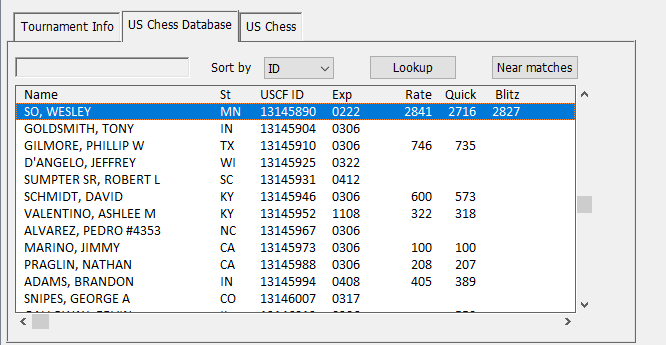
Double click on "So, Wesley" then, since there is nothing else that we need with this entry, click OK to add the player to the tournament.
Step 5—Using Type Buffer: An alternative is to go directly to the Lookup button without filling anything in (or you can single-click anywhere in the US Chess Database scroll box), and start typing. This usually makes the most sense when you are searching by name. Change the Sort by to "Name" (since the last lookup was by "ID", we need to change that back to "Name"). If you start typing "Onis" (everything you type gets converted to upper case), you will see the scroll box move first to the first O, then the first name that starts with ON, .... After "Onis" you would get something like
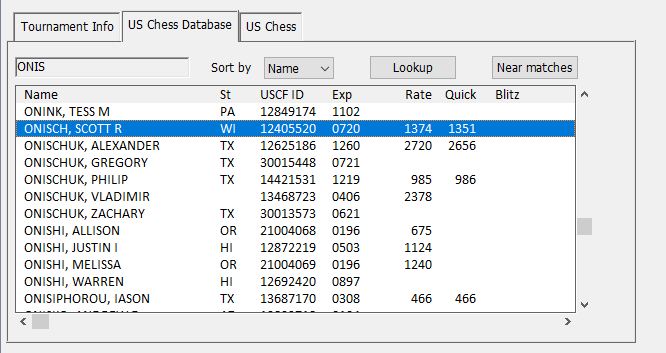
What you've typed so far ("ONIS") is shown in the text box on the top left of the tab. (Note that you don't edit this directly—if you need to change anything, use the backspace, or use the Esc key to erase it and start over). It's brought us to the point where we can see the desired player in the scrolling list. Double click on the "ONISCHUK, ALEXANDER" line and then OK to add him to the tournament.
Step 5—Using Near Matches: The Near Matches button is useful if you have a name with a typo (either on the entry, or possibly on the US Chess database). To simulate this, (mis)type "NAKAMOTO, HIKARU" in the Name box. If you do Lookup, you might be fortunate to find that the correct name is at least visible on the list, but often it won't be, particularly if the typo is earlier in the name. The Near matches button will look for names that are somehow similar to the name that you have. "Similar" more heavily penalizes errors in the last name (here, we have 3 incorrect letters) from errors in the first name. It also helps if you know the state code correct (which you would in most local tournaments)—an incorrect state code is penalized heavily, while a correct state code is rewarded. In this case, if we put in "NY" for the State/Country code and do Near Matches, we will get something like:
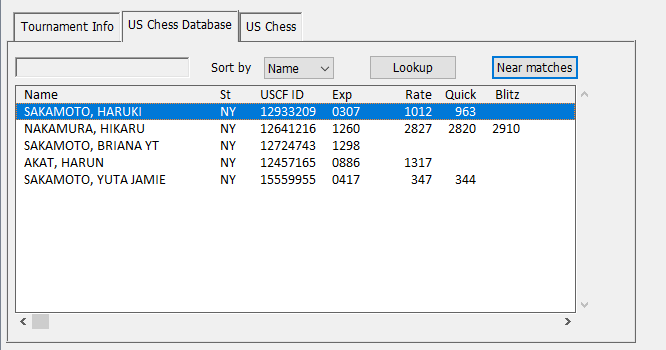
This shows only the items that seems at least somewhat close, ordered with the "closest" at the top—if your information is somewhat accurate, you are likely to see the person in the first page. (SAKAMOTO, HARUKI is "closer" because it's off by only one letter in the more important last name). Here, double-click on "NAKAMURA, HIKARU" and then the OK button to accept the entry.
Step 6: The above will put the players into the tournament using the version of the database which was available at the time that you put the entries in. It's possible that you will be putting the entries in as you get them, but the actual run date of the tournament would require updated ratings. To do that, before the tournament get the updated version of the database (just repeat Step 2), open the tournament, get a player's list, select all the players and do US Chess>Update From Database. That will replace the ratings, expiration and state fields with whatever are the current values on the database.
Copyright © 2026 Thomas Doan