Getting Started: A Worked Example |
We will now work through a simulated tournament. This will use imaginary players so we can put in specific results without possibly embarrassing anyone. However, we'll show at the end how to do the setup process using real individuals.
We will have twelve players in a single-section scholastic tournament. Their information is below. If this were a US Chess-rated tournament, you would probably have US Chess ID's on most of the players and perhaps not the rating (which could be looked up given the ID). Similarly for FIDE-rated tournaments. Of course, it's also likely that the information will come in three separate entries from the three schools. The schools may also not have (or know) the team codes that are shown here. You, or your organization defines those. A common system for these is to use the first two characters to identify the city or school district (US Chess uses the first two for the state) and the last four (we're using only three, but you have a total of six positions in the team code) to identify the specific school.
Getting Started: Using the US Chess Database and Getting Started: Using the FIDE Database go over the extra steps required for using the data available from those two organizations. However, we recommend that you go through most of this example first, as it covers the important steps of doing pairings, entering results, assigning byes and printing reports.
We've provided a copy of the tournament after the players are all entered, so you can skip over entering players once you feel comfortable and open the sample file that we've saved.
No. Name Team Rate Gr Byes
1 Anderson, Sarah WZGRN 886 4
2 Bailey, Renee WZGRN 1233 5 1,2
3 Lewis, Amy WZGRN 4
4 Robinson, Dan WZGRN 1069 5
5 Stevens, Kevin WZGRN 5
6 Brown, William WZOAK 1155 5
7 Greenwood, Ryan WZOAK 5
8 Johnson, Scott WZOAK 1403 5
9 Martin, Kyle WZOAK 754 5
10 Brown, Morgan WZPLY 987 4
11 Smith, John WZPLY 4
12 Whiteley, Xavier WZPLY 1113 5
Step 1: Create the tournament. Choose File>New Tournament. This will pop up a dialog like:
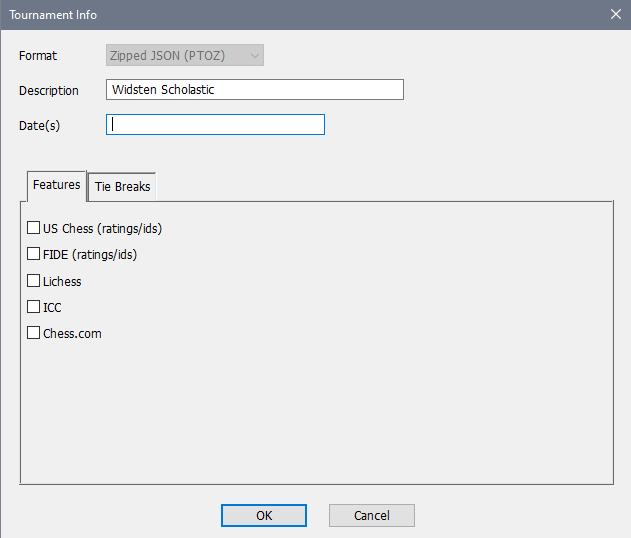
We're choosing the new format (zipped JSON). We'll call the tournament "Widsten Scholastic". Enter a date (this is just used to label reports, so you can format the date any way you want). We're not choosing any of the "features"—you can run a tournament without them you are not using any US Chess, FIDE or other outside data.
Let's leave the tie-breaks, which are in a separate tab, in the default order. When you click OK, the following dialog box, entitled Add/Edit a Section will appear.
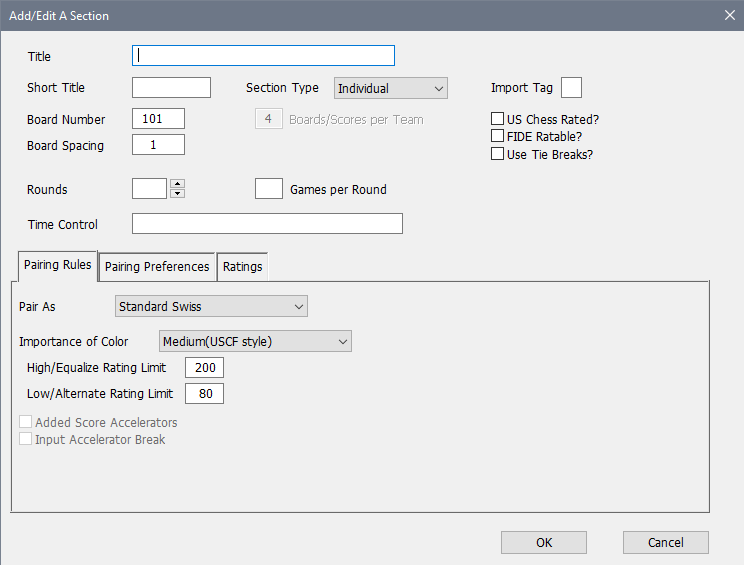
Step 2: Create a section. We will only have one, but it is still necessary to create this. Let's use "Elementary" for the Title and "Elem" for the Short Title (the Short Title is at most 10 characters and is used in places where a full description would take too much room). As we look through the other options in the header (above the tabs), we want to set the Use Tie Breaks? box in the top right since we will have trophies and not money for prizes, switch the Section Type to "Individual/Team" since we will have team prizes. Since this is a small tournament, we'll set Boards per Team to 3 (that would be decided in advance—4 is more common in larger scholastic tournaments). We're doing 4 rounds, so the Rounds box needs to be set to that. We'll put in "G/30;d5" for the Time Control (game in 30 minutes with 5 second delay). Import Tag (at the top right) is used only when you have multiple sections and are importing the entries from a spreadsheet so we won't need that. Games Per Round is used when every rounds has each pair playing more than one game—you can leave it blank for the more typical one game per round that we're doing.
The remaining information is covered in the tab view at the bottom. The Pairing Rules tab has fairly standard choices for a US Chess-rated individual Swiss System tournament. If you're doing a FIDE-rated tournament, you want or need to change the Importance of Color choice—that includes "High (FIDE Dutch)" which does the Dutch system pairings.
We will need to make a change on the Pairing Preferences tab as that includes the rules for dealing with pairing members of the same team. With the changes above, if you click on the Pairing Preferences tab, the dialog will look like:
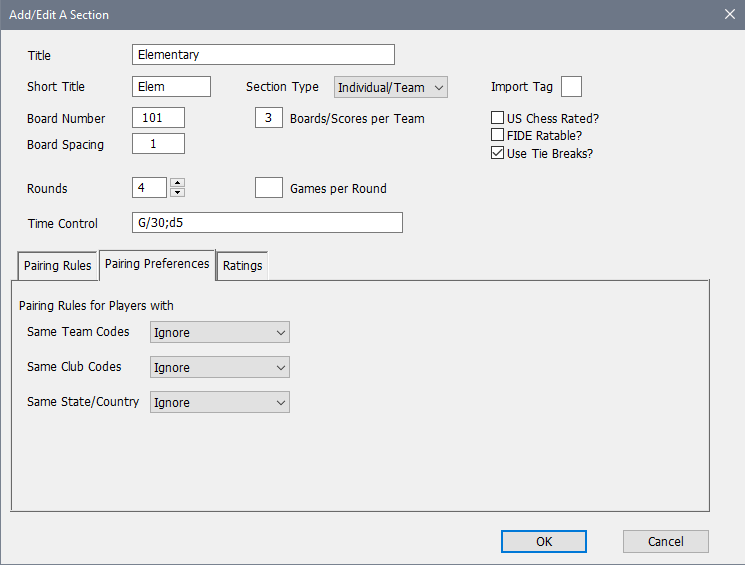
These are for special rules to restrict pairings. We want to make it so that players from the same team don't play (if that's possible without pairing players twice). That's done by setting the Same Team Codes box to "Don't". There are three choices: "Ignore" means that team codes are ignored in doing pairings, "Don't" means teammates are only paired in there is no other way to pair the section, and "If Required", which is an intermediate level of control where teammates will be paired if score groups would have to be broken in order to avoid it.
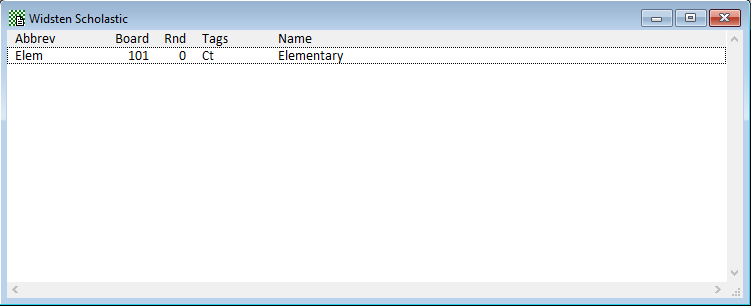
We'll change that, and since we won't need to do anything with the Ratings tab, we're done. Click on OK. A blank New Section dialog box will pop up. If we had more than one section, we would enter the information for that section now. Since we don't, just click the Cancel button. A Sections Window with the title "Widsten Scholastic" will appear as shown below.
Step 3: Add the players to the tournament. First, click once on the "Elem" section in the Sections window to select that section (it should already be done when you first get here). Now, choose the Players>Add a Player operation. This will pop up an empty Add/Edit a Player dialog box as shown below.
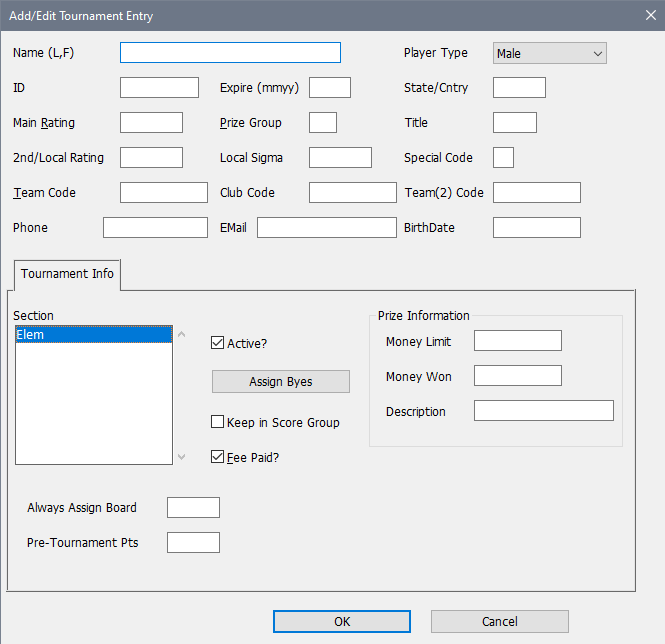
Clearly, this has spaces for a great deal of information, most of which isn't necessary for a small tournament with low stakes, but can be useful or critical in larger or more formal tournaments. Our first player is
No. Name Team Rate Gr Byes
1 Anderson, Sarah WZGRN 886 4
so enter her Name (last name first), 886 into Main Rating, grade (4) into the Prize Group field and the team code (WZGRN) into the Team Code box. You can change the Player Type to "Female" (not really necessary unless you have some special prizes for girls). You could also fill in the State field, though again, that won't be necessary.
In the Tournament Info tab, the Section is already selected (since there is only one). You can click Fee Paid? now if you want to use WinTD to keep track of who still owes or not. This is all we will need so you can click OK which adds Sarah Anderson to the section. It will automatically pop up a new (almost) blank Add/Edit a Player window (and will keep doing this until we Cancel).
The next player is Renee Bailey.
No. Name Team Rate Gr Byes
2 Bailey, Renee WZGRN 1233 5 1,2
Add her information to the new dialog. Note that it starts with her team information already "guessed" as "WZGRN". Since entries are often entered in batches from a single team, that will most of the time save you a step when you are manually entering the information. You should have something like:
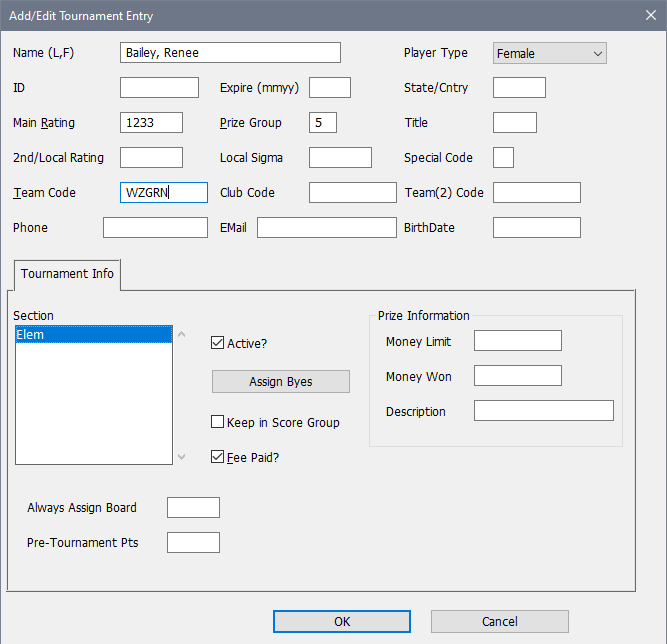
Renee has the complication that she is requesting byes for the first two rounds. We're assuming that you allow half point byes for those rounds. (Again, your requested bye policy should be decided in advance). To enter the bye requests, push the Assign Byes button in the Tournament Info tab. This will pop up:
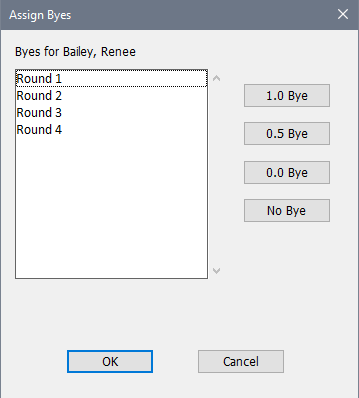
Select Round 1 and Round 2 (for instance, click on 1 and <Ctrl>+click on 2) and push the 0.5 Bye button. The display will change to show Round 1-Half and Round 2-Half. (You could also do the two rounds one at a time: Click and hit the 0.5 Bye, click the other and hit the 0.5 Bye.) Click OK, and you go back to the main player edit window. Since the record is done, click OK again.
You can enter as many of the other players as you want. When you're done, click Cancel on the Add/Edit a Player dialog. A couple of things to note:
1.Several of the players are unrated. For unrateds, leave the Main Rating field blank. Don't use 0 for unrated—0 means zero which is not the same.
2.When you get to a new team, make sure you change the Team Code field.
Step 4: We have provided you with a saved copy of the setup for this tournament so you don't have to enter all twelve players. (If you put in all twelve yourself, congratulations. Skip to Step 5). To get this, first choose File>Close. This will close the copy of the tournament you have been working on. When you're asked if you want to save the changes, just click on No. Now, choose File>Open Tournament. Find and open the file SAMPLE.PTOZ. See Where to Find It: Windows or Where to Find It: Macintosh to see where the sample files are saved initially.
We have also included saved copies of the tournament (sampleR1.ptoz, sampleR2.ptoz, etc.) at different points to let you skip steps. Where you see File: samplexx.ptoz, it means that you can open that file to pick up from that point.
File: sample.ptoz
Step 5: Click on the top (and only) line in the Sections Window. This selects this section for operations in the Section Menu. Choose Section>List Players (or click on the  icon). You will get a Player Window with the players in this section (at this point they will be in alphabetical order). The first few lines will look like this:
No. Name Team Gr Pts Rnd1 Rnd2
1 Anderson, Sarah WZGRN 4 0.0 -U- -U-
2 Bailey, Renee WZGRN 5 0.0 -H- -H-
(This is using the scholastic.prf preference file which puts the Team codes into the player windows). These fields give the players'
1.Player number (according to the sort order).
2.Name
3.Team
4.Prize group
5.Current tournament point total (obviously 0.0 for all players right now).
6.Rounds. For most players, for most rounds, this shows -U- which means "unplayed". For Renee Bailey, rounds 1 and 2 are -H- meaning half point bye.
If you want to view or edit the information for a particular player, just double-click on the player's name. For example, try double-clicking on the line for Scott Johnson. This pops up a dialog box (the same one you used to add the players originally), allowing you to correct any information. We don't need to change anything, so just click on Cancel to close the dialog.
Now choose Section>Assign Pairing Numbers. To get a list of the players sorted by their pairing numbers (that is, by ratings), choose Edit>Change Layout... or click on the  icon. Click on the "By Pairing" line in the First Sort list. Then click on OK. The players' list will be in pairing number order. Now the "No." column gives the player's pairing number. The Change Layout operation lets you change the fields and the sort order of the players' window to match your needs at any point in the tournament.
Step 6: All the players in our fictitious tournament are here, and we're ready to go. Switch to the Sections window (either click on it directly, or choose it from the Windows menu or click the  icon) and select Section>Pair a Round. Up pops the Pair a Round dialog box asking which round is being paired. You will usually be able to simply click OK to continue.
WinTD will (briefly) display a progress bar as it computes the pairings though this will take so little time you will barely see it. You will notice that nothing else apparently happens (other than a 0 being replaced with 1 in the Rnd field in the Sections window). WinTD does not automatically spit out pairing sheets. Choose Section>List Games-Current Round (or click on the  toolbar icon). This will list the games for round 1 in a new Games Window. This should show
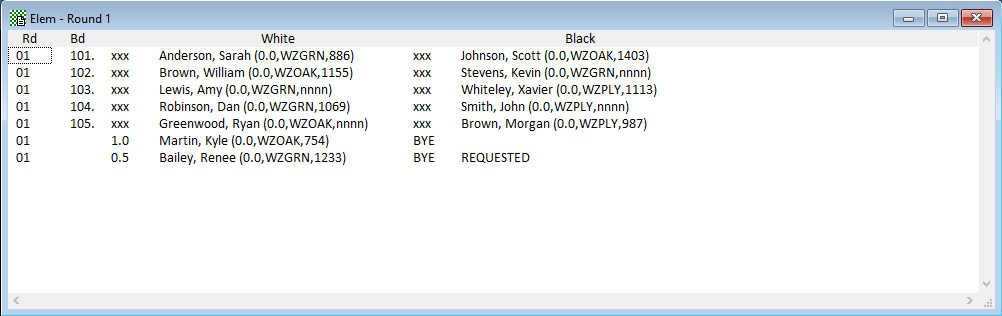
01 in the Rd column means Round 1. Bd is the Board column, so 101 has Sarah Anderson playing White versus Scott Johnson. The xxx means that no score has been entered. These will change to 1.0, 0.0 or 0.5 when scores are entered. The numbers in parentheses indicate the current cumulative score, team and rating for each player. Because this is the first round, the scores are 0.0 for both players.
If you want a pairing sheet, select Reports>Print Window or Reports>Print Games Windows (or click on the  ). This will let you print a pairing sheet for entering results or an alphabetized listing of board assignments.
Step 7: While the first round is being played, you want to print a wall chart to post. Switch to the Sections Window, make sure that our Elem section is selected (it will be, because we have just the one section), and choose the Reports>Print Wall Chart operation. This displays a dialog box that allows you to customize the wall chart. For now, just click on OK.
Step 8: You are getting results from the games. There are two ways to handle this. One is to have the results entered manually on a pairing sheet and to enter the scores in a batch when all the games are done. Most large tournaments would probably be handled in that fashion. To simulate this, we will use the following results for the five boards in order 0-1, 1-0, 0-1, .5-.5, 1-0. There are two ways to get these results in:
Keystroke Method
From the Games Window, select the first of the games for which you want to enter results (usually the first game in the window). Enter the result for the White player by hitting the W, L, or D key, for win, loss, or draw, respectively (you can hit F for forfeits, or N for no result to skip that player). WinTD will automatically move to the next game in the list, so you can continue hitting W, L, or D to enter results (see Quick Entry Keys for details). Given the results, we want L W L D W.
Dialog Box Method
Click on the Games Window, and use Edit>Select All, or some other selection process to select all the games. Then choose the Games>Enter Scores operation. This will pop up a series of Game Result dialog boxes which will allow you to enter the results. The dialog boxes will pop up the games in exactly the order they are listed in the Games window. You can just walk down the pairing sheet and input the results.
For a very small tournament, you can probably dispense with the printed pairing sheet and simply enter the results as the games finish. When a result is reported on board 102, simply double-click on that line and the dialog box for entering the score will pop up.
To correct any results, just double-click on the line in the Games window and fix the result in the dialog box.
Step 9: We would recommend that you now make a backup copy of the tournament. The best way to do that is to use the File>Copy Tournament To... File>Save As... renames the active file, which can get confusing. A good idea is to name the backup as round1.ptoz and similar for other rounds.
File: sampleR1.ptoz
Step 10: When all your results are in, go to the Sections Window, select "Elem" and again choose Section>Pair a Round. This will pair round 2. If you left the Games window open, it will now be updated to show round 2. If not, repeat step 6 to get the list of games:
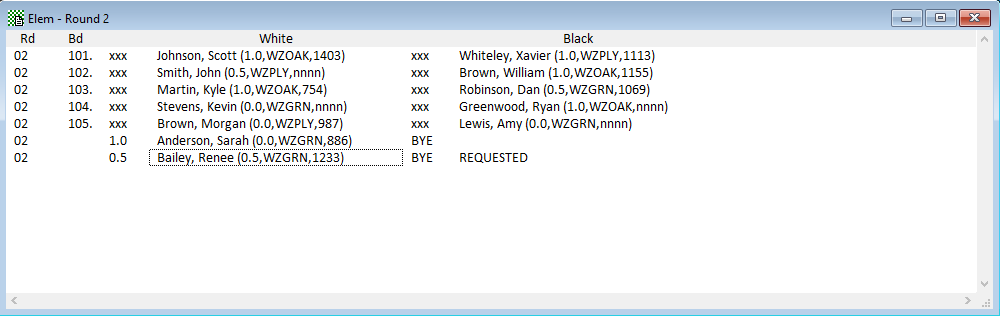
One thing to note is that, because this is a small tournament and it's set to not pair teammates, the pairings can sometimes be different than they would be otherwise. For instance, here there are five players with 1.0, but four of them are from the team WZOAK—there is no natural way to pair those which wouldn't end up with two teammates playing each other. So three of the 1.0's are dropped (downfloated) to play lower scores (the two draws and one to a first round loser). The odd-player bye goes to the lowest rated player with 0 points: Sarah Anderson.
The scores in this round will be 1-0, 0-1, 0-1, 0.5-0.5, 1-0. For quick keys, W L L D W.
Step 11: We will now perform a feat which is often very difficult with pairing programs: a cross-round pairing. Suppose we wish to have the player who received the full-point bye in the first round (Kyle Martin) play the player who received the full bye in the second round (Sarah Anderson) after Kyle finishes his regular second round game. Choose the Section>Enter Manual Pairing operation. You will see two lists of players (in alphabetical order), one for White and one for Black (see Manual Pairing dialog box for details). Select the White player and Black player. Since Kyle just played White, we'll give him Black. If you want to let WinTD assign the colors, just select one player in the White list, the other in the Black list, then click on the Assign Colors button; WinTD will switch the colors if needed. Make sure that the Round boxes are set correctly for the two players. This should be round 2 for Sarah and round 1 for Kyle. (If you don't set the rounds correctly, WinTD won't accept your pairing, since you would be overwriting an existing game). If you have a specific board number where you want them to play, set that in the Boards field. You should end up with something like the following:
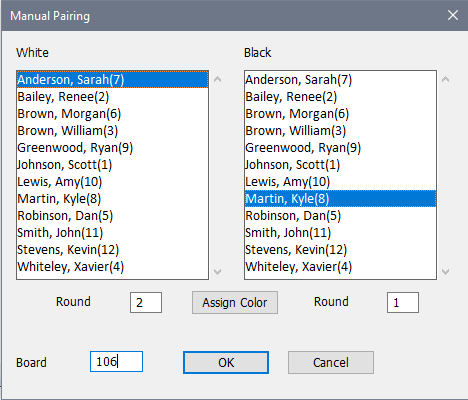
After the information is put correctly into the dialog box, click OK. Now when you do Section>List Games-Current Round, it will include the cross-round game. This will be at the top of the list, since it's part round 1, part round 2. If we did a list of Round 1 games (use Section>List Games-Specific Round for that) the game would be at the bottom there since it's part round 2. Let's make the result Sarah 1-Kyle 0. Enter that.
Step 12: Let's look at a different layout for the Player Window. Click back to the Sections Window and click the  (for Players, Cross Table) icon. You will notice that the top scores are only at 1 pt. In general, WinTD doesn't update the players' scores until you take some action that indicates that the current round is completely done. That would be either pairing the next round or printing a cross table or standings. You can also force it with Section>Update Scores/Standings. If you do that, you'll notice that the scores update and the window re-sorts the players. You should now have
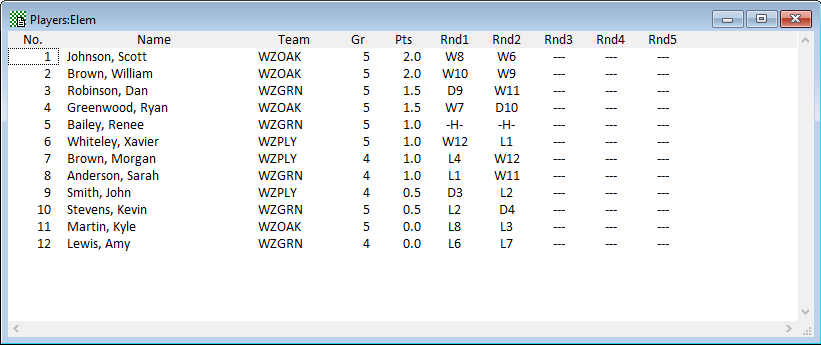
This is displayed in the standard order for a cross table: sorted first by score, then by rating. From this type of view, you can double click on a player's name to bring up the Add/Edit a Player dialog box. You can also double click on a game entry in the "Rnd" fields to bring up a Game Result dialog box which will allow you to change the result.
Note, by the way, that you can have several Players windows in different formats around at the same time. Just create another Players window using Section>List Players.
File: sampleR2.ptoz
Step 13: Again, with Round 2 completely done, it's a good idea to make a backup with File>Copy Tournament To... With that done, pair Round 3. Again, that's with Section>Pair a Round. If you don't have the Game Window still around (if you have a "current round" Games Windows open, it will automatically update when you pair the next round), open one by hitting the icon in the Sections Window. You should have
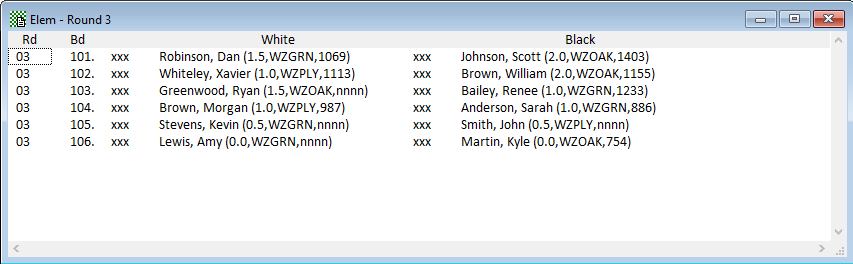
Note that, because of the teammate pairing preference, the two 2.0's (Scott Johnson and William Brown, both from WZOAK) don't play each other. Our results will be 1-0, 1-0, 1-0, 1-0, 0-1, 1-0, so the Quick Keys will be W W W W L W. At this point, you might want to print a cross table for posting, using Report>Print Cross Table. This shows the players ordered by score.
Step 14: Suppose that Dan Robinson can't play round 4. There are many ways to handle this—which you choose will depend upon when you found out about this. If this were known at registration time, you could have put it in as an Assigned Bye (for zero points) for round 4 and you can still do that (by selecting Dan Robinson in a Players Window and doing Players>Assign Byes). If you have the "Cross Table" view of the Players Window open (you might want to open one if you don't), you can double-click on the --- for round 4 for Dan Robinson. That will pop up a Results dialog box for Byes and Unplayed games only. Finally, you can "check out" the Player. This takes him out of the list of active players so he won't be included in the next round's pairing. ("Checking in" makes a player active again). To check him out, go to any Players Window, click on Dan Robinson and click the  (check out) toolbar. If you have a Players Window which includes the "Status" field, his status would now change from "In" to "Out".
Step 15: It's really easy to get a screen clogged up with various windows, particularly if you have more sections than just one. You can always close windows that you don't need, or minimize ones that you may need later. However, there are a few operations on the Window menu which can help you keep your workspace clean: Window>Close Player Windows, Window>Close Game Windows and Window>Close Report Windows will close all windows of those particular types. However, you can choose Window>Keep Window Open to exempt a particular window from those operations. As long as the tournament is open, you will always have its Section Window. We would also recommend that you keep a "check-in" style Players Windows available.
File: sampleR3.ptoz
Step 16: Pair round 4 (our final round). The Game Window for this would be
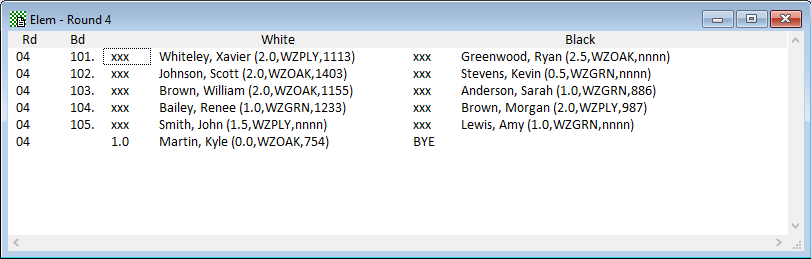
Because we now have an odd number of players (since we don't have Dan Robinson), we get a forced bye for the only player at 0.0. The results will be 1-0, 1-0, 0-1, 0-1, .5-.5, so the quick keys will be W W L L D. (Note that the pairings are distorted because of the team pairing preference which prevents the high scoring WZOAK players from playing each other, combined with the fact that all the players have already had 3 different opponents from other schools, so the number of available opponents for some players can be quite small.)
File: sampleR4.ptoz
Step 17: Make a final backup. At this point, you might want to print a final cross-table with Reports>Print X-Table. To do standings for prizes, select Reports>Show Prize Lists. This will pop up the Prizes to Print dialog asking you how many places to print for the Overall, Prize Group, and Rating Group prizes. To get complete standings, set the box to show "All". Suppose here that we have 2 overall prizes, and 1 for each grade. Put 2 in the Overall box, 1 in the Per Prize Group box.
When you OK this, you'll get the following Report Window:
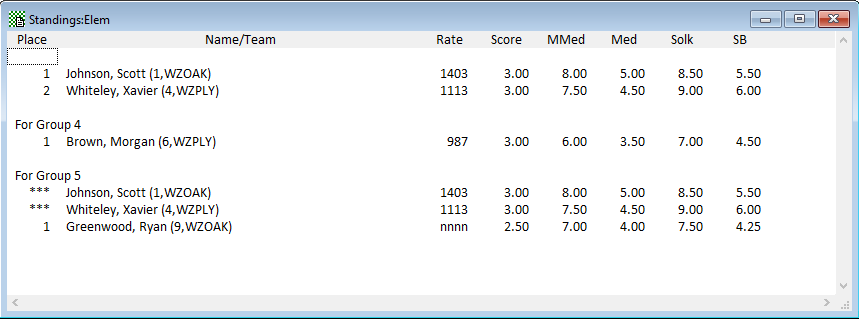
We had a three-way tie at 3-1. The top two prizes go to Johnson and Whiteley as they have the best tie breaks. Brown (who also scored 3-1) gets the top grade 4 consolation award and Greenwood (at 2.5-1.5) gets the top grade 5 prize. (The ****'s in the "For Group 5" section show that those two players already qualified for higher awards). Dan Robinson also scores 2.5-1.5, but does not win any awards, as he has low tie breaks from missing the last round. If, in the prize dialog, you choose the + Ties in the Per Prize Group description, it will show Dan Robinson as as a 2nd place in "For Group 5".
Note that this window does not print automatically. If you want to print this as it stands, just use the toolbar icon or do Reports>Print Window.
Step 18: To get team standings, do Reports>Show Team Standings. This will pop up the Team Standings dialog box:

We'll put in 3 for the List top scorers... box. When we click OK we get:
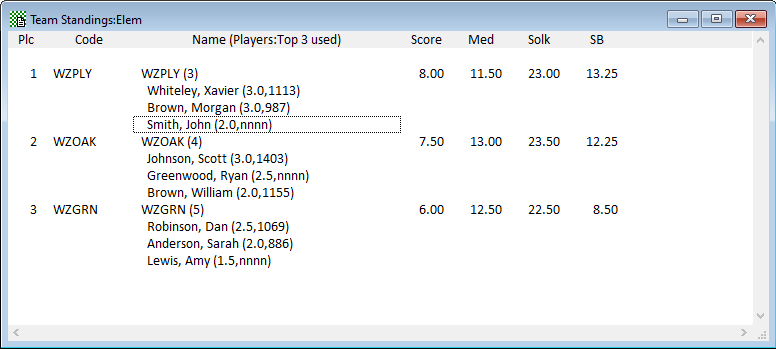
(We haven't created a Master Team file so we don't get full team names. In practice, you would have done that probably before the tournament). The (n) after the team name shows how many players the team has competing. The detail list shows just the top 3 (or however many scores count) plus ties. Again, this does not print automatically, so print it if you want using Reports>Print Window or the toolbar icon.
Copyright © 2026 Thomas Doan