


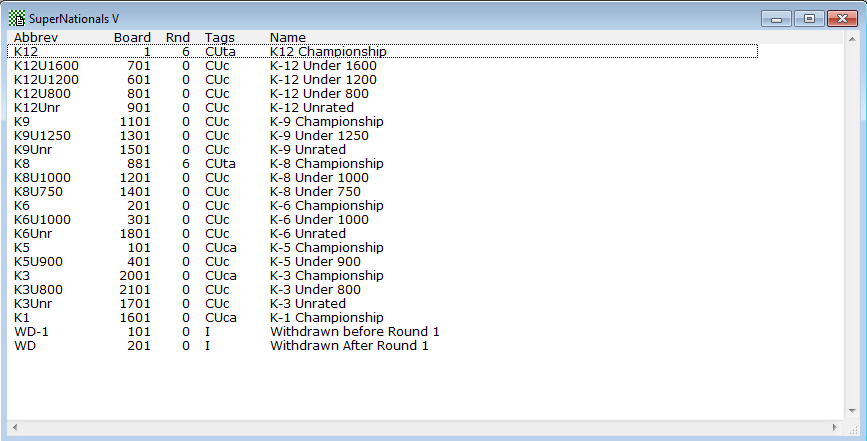
Sections Windows are associated with a tournament file. They display a list of the sections in a tournament. Here's a sample Sections Window:
Description
The name of the tournament (set by the "Description" field in the Tournament Info Dialog Box) appears on the title bar of the window. For each section, the window displays the short and full titles, the starting board number, and the number of rounds paired. WinTD also uses several one-letter "tags" to indicate various information:
For all sections, WinTD will display an upper-case I, C, T, or W to indicate whether the section is an individual, combined, team, or board-weighted section, respectively (all the sections in the example above are "C", or combined, sections).
An upper-case U indicates a USCF-rated section.
A lower-case t indicates that teammate pairing restrictions are in effect for that section.
A lower-case a indicates that accelerated pairings are in use.
A lower-case r indicates a round robin section.
In this example, the tournament is called "SuperNationals V", and it contains 20 working sections, as well as a two sections for handling withdrawals.
Opening a Sections Window
WinTD displays a Sections Window whenever you use File-Open Tournament... to open an existing tournament, or File-New Tournament... to create a new tournament.
Double Clicking
Double-clicking on a section brings up the Add/Edit a Section Dialog Box, which allows you to edit the information for that section.
Menu Operations
Most of the items on the Section menu are only enabled when you've selected one or more sections from a Sections Window. These operations will apply only to the selected section(s).
Drag and Drop
You can add players to a section by dragging them from a Master Player Window and dropping them onto a particular section in a Sections Window (see Adding Players to a Tournament for details). You can also move players from one section to another by dragging and dropping from a Players Window. See drag-and-drop for more information.
Keystrokes
Cursor control keys and the space bar are the only keystrokes supported in Sections Windows.
When a Sections Window is active, WinTD displays the following icons in the toolbar:
 Opens a separate Players Window for each selected section. Equivalent to the Section-List Players operation. See List Players for details on listing players.
 Opens a single Players Window listing all the players in the selected sections, using the "Check In" style available through the Edit-Change Layout operation.
 Opens a separate Players Window listing the the players in the selected sections, using the "Cross Table" style available through the Edit-Change Layout operation.
 Opens a Games Window listing the games for the current round. Equivalent to the Section-List Games -Current Round operation.
 Moves the selected section(s) up one line in the Section Window.
 Moves the selected section(s) down one line in the Section Window.
Export
The File-Export operation is currently not available for Section windows.
Cut/Copy/Paste/Clear
Disabled when a Sections Window is active.