


The "Add/Edit a Player" dialog box allows you to add new players (or teams in a team tournament) to a tournament file or master player file, or change information for existing players. There are several ways to bring up this dialog box:
- To edit the information for an existing player, double-click on the player's name in a tournament or Master Player Window.
- To add a new player to a master player file, select the operation Master(Player)-Add a Player.
- To add a new player to a tournament section, select the operation Players-Add a Player.
Note that you can use the Edit-Change Common Info... operation to quickly enter or change the Prize Group, Team ID, Club Code, and other information for a group of players.
WinTD actually uses several different versions of this dialog box depending on whether you are entering/editing a player stored on a tournament file, a player stored on a master file, or a team stored on a tournament file. Also certain items are not always available. For example, the "From Master" button for adding Team ID's only appears when you have a team list file open.
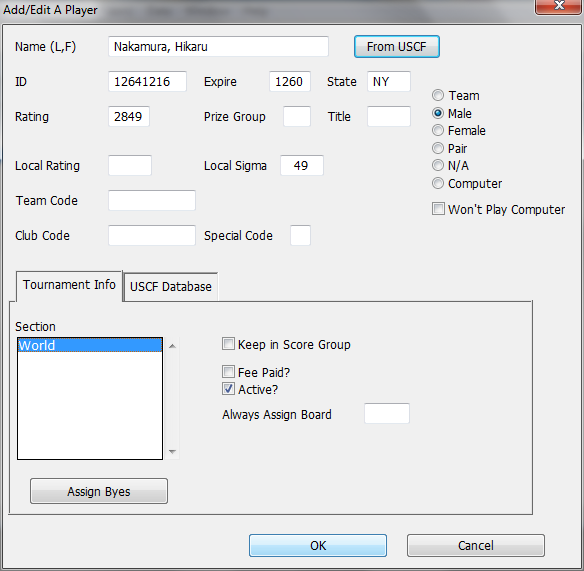
Here is the dialog box used for adding/editing players in a tournament file:
And here is the the dialog box that appears when adding/editing players on a master player file:
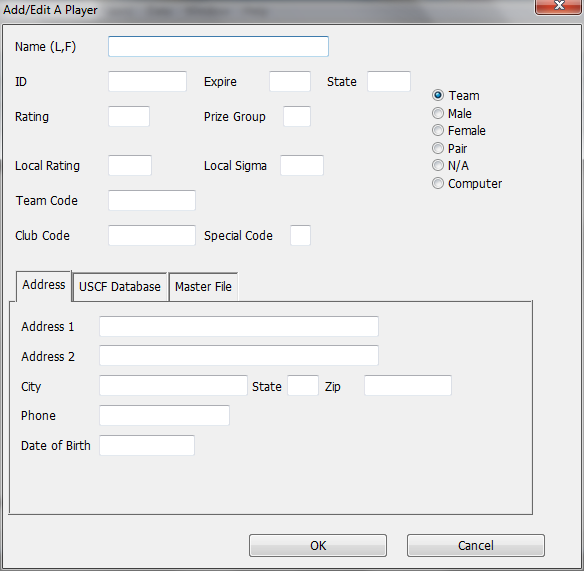
The various fields are described below:
Name
Enter the full player or team name here. For individuals, use the format "Last name, First name."
From USCF
If you have the USCF database installed on your computer, you can use it to look up rating information and ID's for a player. Click on the From USCF button (or type part of a name first and then click on From USCF). This will pop up (after a short wait the first time you use it) the USCF Database Player Selection dialog with an alphabetized list of players from the database. If you select a player from this list, the Name, State, USCF ID, Expiration and Rating boxes will be filled in automatically. You may need to edit the name, since the rating database often doesn't include complete names.
ID
The player's USCF or other identification number (maximum of 8 digits).
Expire
Expiration date of the player's USCF membership. Use the format "mmyy" for this value. Use "9999" for a life member.
State
The player's state or country abbreviation. WinTD will accept up to three characters.
Team/Male/Female/NA/Computer radio buttons
If the player record is for a team in a Team Tournament, be sure the "Team" button is selected. When the "Team" button is chosen, the "From USCF" button is replaced by an "Edit Team" button---if you click on this, it will display the Team Setup dialog box, which allows you to add players to the team, remove players from the team, and set the board ordering.
For computers, select the "Computer" button, which prevents this player from being paired with human players who have selected the "Won't Play Computer" option.
Won't play computer (individual tournament player only)
This is obsolete, as computers are no longer allowed in tournament play. Under old USCF rules, a player can decline to play a computer. In order to handle this rule, you need to check the "Player is computer" box for computers and "Won't play computer" box for any player who doesn't wish to play one.
Rating
The player's USCF or "main" rating.
Prize Group
The player's special prize group. This can be any two-character alphanumeric code. For example, you might use a player's age or grade level for scholastic tournaments.
Local Rating
The player's "local rating," if any, is in this field. See Local Ratings for more on how WinTD can compute these. If you want to assign an unrated player a rating for pairing purposes, put it in this field and use the "USCF Rating, Local if Unrated" button in the Add/Edit a Section dialog box.
Local Sigma
The standard deviation of the player's local rating.
Team Code
If the player is a member of a team, enter the "abbreviated name" or code for the team here. This can be up to six characters. If a Master Team Window is open, a pushbutton entitled From Master will appear next to this field in the dialog. You can click on this button to select a team name from the team file.
From Master (visible only if a Team Window is open)
Clicking on this button pops up a list of the teams in the active team file. You can select a team and click on OK to set the "Team ID" field of the data file.
Club Code
"Club codes" offer you the option to avoid pairing players who are related, or from the same club, or same state for part or all of the tournament. If you check the "Avoid Pairing Same Club" box in the Add/Edit a Section dialog box, then WinTD will try not to pair players whose club codes match. Club codes can be up to five characters. See Pairing System: Teams and Clubs for details.
Special
This is a one character tag which you can use as you see fit. For instance, you might use this to indicate players who are members of your club (and thus may be entitled to a reduced entry fee) or who are members of your state organization.
Title
This provides space for up to three characters to show a title such as GM or IM. Because this gets added to the name on output, adding a title may truncate a very long name.
Tournament Info tab
Section
This box displays a scrolling list of the sections in the tournament. The section in which the player is currently entered will be highlighted. Clicking on a different section will move the player to that section. This field only appears when adding/editing a player on a tournament file.
Keep in Score Group
If you turn this box on, WinTD will try to keep the player in his own score group when pairing; that is, another player will be selected to be dropped or raised. See Pairing System: Drop/Raise Decisions.
Fee Paid?
You can use the check box to indicate whether or not the player has paid his entry fees for the tournament. If you use this feature, you can use the Edit-Change Layout... operation on a Players Window to display a list of players who have not paid their entry fee. WinTD can't do the detailed accounting for you. It can help you flag people who owe you money.
Active?
The "active" check box controls whether the player is active (checked in) or inactive (checked out) in the tournament. If the check box is turned on, the player is active. Note that this provides an alternative method of checking players in and out. See checking players in and out for details.
Assign Byes
This pops up the Assign Byes dialog box allowing you to enter at registration time byes for those who request them.
Address tab (Master Player File Only)
Input address information into the boxes shown.
USCF Database tab
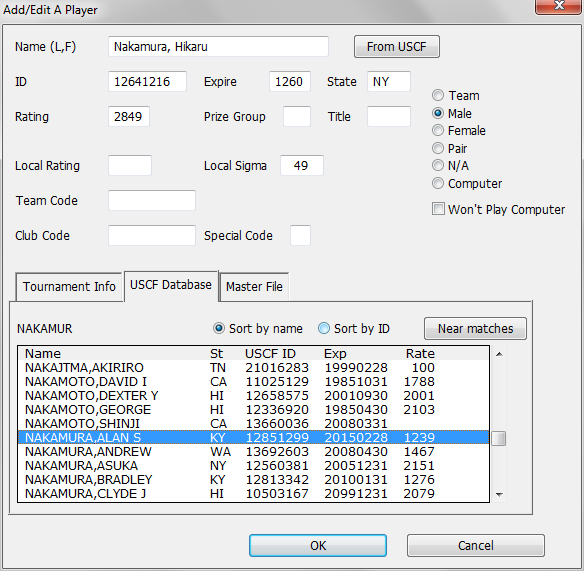
This sample shows the dialog with the USCF Database tab open. This will be present only if you have the USCF database installed on your computer. The main part of the tab is a scrolling window with a display of the information from the database.
Sort by Name
Sort by ID
Pick how you want the display sorted. If you start typing, it will locate the first match for the text that you've typed so far. At the top left, it will show the current search stub. (You can't edit this, it responds as you type). For instance, here it's matching NAKAMUR. If you need to make a correction, you can use a backspace to delete the final character.
Near Matches
This will scan the database looking for near matches to whatever you have in the "Name" box in the main part of the dialog. This is when you need to find an ID which might be associated with a slightly different spelling. Note that this can take a while. When completed, the scrolling list will be restricted to the close matches, determined by the similarities of the last name (which is expected to be close) and first name. It also looks for reversed first and last names.