Dialog Box: Add/Edit a Team |
The "Add/Edit a Team" dialog box allows you to enter a new team in a team file, or edit the information for an existing team. This information is used when running a "combined" (team/individual) tournament—team files are not used when running "team" tournaments (see Team Tournaments for details).
The dialog will appear whenever you add a new team using Master(Team)>Add a Team, or when you double-click on an existing team in a Team Window.
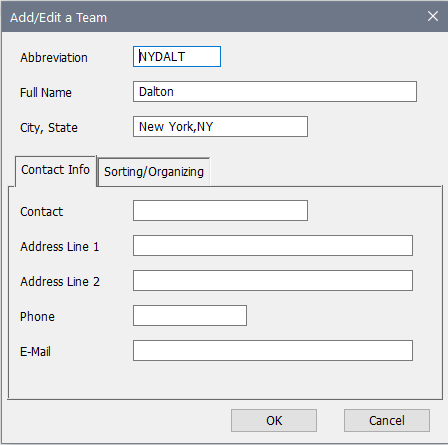
The header information is all that is often needed and, by default, that is all that is displayed in the Team Window—you can add some of the other information to the display using Edit>Change Layout.
The basic information consists of these three fields:
Abbreviation
This is the team code that will be used in the individual players' records to identify of which team they are a member. It can be up to six characters. See Teams and Clubs. The team abbreviation is used in wall charts, cross tables, and other printouts, and in the Team Code field in the Add/Edit a Player dialog box.
Full Name
This is a more complete name of the team (school). Because there is a separate city and state field, you can typically omit that information from the name. This is a "searchable" field in the Edit>Find operation. The Full Name is used in team standings, and also may be used in individual prize lists.
City, State
Use this for the city and state or province; location information that might be helpful. Again, this is a searchable field.
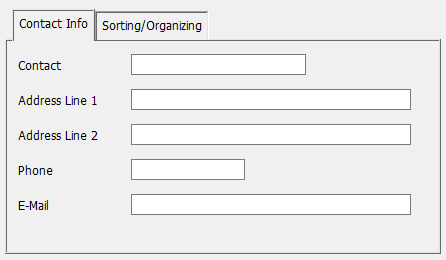
If you decide to keep contact information for the team (typically the coach or on-site representative) you can use these fields which are fairly self-explanatory. You can use whatever format you want for the Contact (name) field—it's probably simplest to do the name as you might address any correspondence.
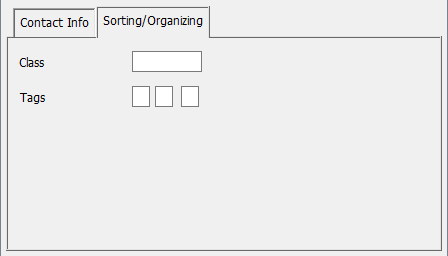
The Class field (up to five characters) and the three (single character) Tags fields allow you to assign identifying alpha-numeric descriptions and characters. You can use the Edit>Change Layout operation to display these tags in Team Windows, or even filter which teams are displayed. For example, you could use E (elementary), J (junior high) and H (high school) to distinguish school types. You can use the Class field for a longer classification, perhaps the team's conference, or general location (such as METRO or NORTH).
Copyright © 2026 Thomas Doan