Dialog Box: Change Layout |
The Change Layout dialog box allows you to customize the organization and appearance of Players Windows, Master Player Windows, Games Windows and Team Windows according to your preferences or the task at hand. You can select from several pre-defined styles, or create and save your own new styles. To change the layout of a window, just make that window active and select the Edit>Change Layout... operation.
If you create new styles or change the existing styles, and want to preserve these settings for use in subsequent WinTD sessions, be sure to save the changes as part of a preference set, using the Manage Preference Sets... operation. See Preference Sets for details.
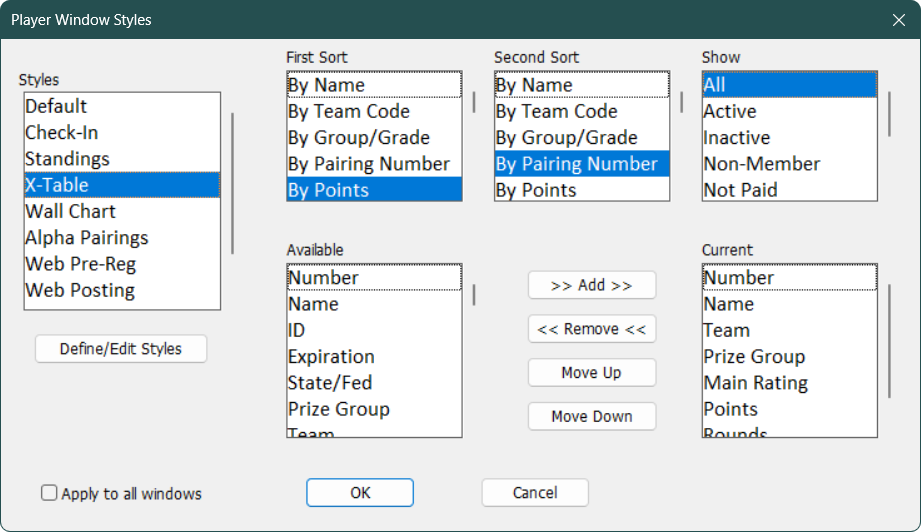
Here is the Change Layout dialog box, as it (might) appear when a Players Window or Master Players Window is active. See below for the Change Layout box for Games, or for Team Lists.
Styles List
To select a pre-defined style, just double-click on the style name in the Styles field. The "Check-in" style shows the players' names, and their check-in and payment status. "Hit list" shows only the players who either have expired (or no) ID's or who haven't paid their entry fee. "Standings" orders the players by score. "X-table" and "Wall chart" include information about the rounds (win, loss, draw and opponent) with "Wall Chart" is ordered by pairing number and "X-table" is ordered by standing. Those are standard to most window types (as are included here), as described below.
Define/Edit Styles
You can use this to define a new style, redefine one of the existing ones to suit your needs or otherwise edit the list of styles. Just set the First Sort, Second Sort, Show and Current fields as desired, then click on the Define/Edit Styles button to assign a name to the style you've created. WinTD will pop up the Define Style dialog box prompting you to enter a new style name or select one of the existing styles. If you want to save your new styles for later use, make sure you use the Manage Preference Sets... operation to save your changes. For, example, if you want to change the default style, click on Define/Edit Style, in the Define Style dialog, click on the "Default" style name, click on Replace in the Define Style dialog, OK the prompt for the name of the style and click on OK. Then save the settings as the default preference Set.
First Sort, Second Sort
These allow you to specify primary and secondary sort fields. For players windows, you can sort the list "By Name", "By Team Code", "By Group/Grade" (the Prize Group field), "By Pairing Number", "By Points", "By Standings", "By Section", "By Rating", "By Second Rating", "By Second Only", "By Special Code" (which can be specified in the Add/Edit a Player dialog), "By ID", "By State/Fed", "By Type (Sex)", "By Title", "By Expiration", "By Club" or "By Local Sigma". For master windows, the same choices are available, except for those associated with a specific tournament (pairing number, points, standing, and section).
Show
This field allows you to filter the players or teams that will be displayed in the window by various characteristics. Note that it is not available for master player windows. For player windows, your choices here are to show: "All" players, "Active" players only, "Inactive" (withdrawn or checked-out) players only, "Non-Members" only (no ID or expired ID), "Not Paid" only (entry fee not paid), "Problems" (combines the last two categories), players who have a "Special" code set or players with "Requested Byes".
Available Fields
This lists all of the fields which can be shown in the window. The following are available for both player and master windows: "Name", "ID", "Expiration" (for US Chess membership), "State/Fed" (state or country code), "Prize Group" (typically grade), "Team", "Team(Second)", "Club", "Rating" (main), "Second/Local Rating", "Local Sigma", "Title", "Type (sex)", "Special" (one character code), "Phone", "EMail" and "Birthdate".
This will also includes the data for any of the features that you have included in the master file or tournament. These are listed after the standard fields, and all have names like feature.value, such as "USCF.regular" or "FIDE.fed".
In addition, a Players Window for a tournament can include "Number" (this depends upon current choice for the sort), "Standing", "Points", "Rounds" (a separate field for each round showing the result and the opponent), "Rounds + Color" (same as "Rounds", but with a w/b indicator for the color assigned), "Status" (checked In or Out), "Payment" (Yes or No), "Section" (abbreviation), "Board" (current color and board assignment), "Opponent" (name and rating of current opponent), "Color Needs" (shows the color player needed the last time the round was paired—"Expects White" for alternation, "Needs White" for equalization, "Expects Black", "Needs Black" or "Either"), "Pre Rate", "Post Rate" and "Perf Rate" (pre-tournament, approximate post-event rating and performance rating, computed using Section>Compute Approx Rating), four Tie Break fields (tie break ordering is controlled by the Tournament Information dialog box) and "Board Points" for team tournaments.
Please note that the "Post Rate", "Perf Rate" and Tie Break values are not saved as part of the tournament file, so these will have to be recomputed if you want to display them after closing and re-opening the tournament.
Master files can display also display the player's address.
Current Fields
This shows which of the Available fields will actually be displayed in the window, and the order in which they will appear. Use Add and Remove to add or remove fields and Move Up and Move Down to change the ordering.
Add and Remove Buttons
The >>Add>> button takes the selected fields from the Available list and adds them to the format (at the end of the list). The <<Remove<< button takes the selected fields from the Current list and removes them from the format.
Move Up and Move Down Buttons
You can use these to reorder the fields in the format. The selected fields in the Current list are either moved up or down relative to the unselected ones. You can order the fields as you please, but a "Rounds" or "Rounds + Color" field (if included) will always be moved to the end, since it takes up possibly quite a few separate columns in the Players Window.
Apply to all windows
By default, changes specified in the dialog box will only apply to the current (active) window. If you check this box, the settings will apply to all open windows of the same type, and to any windows of that type that you open later in the session.
This is the Change Layout dialog as it appears when a Games Window is active:

The Styles and Define Styles fields and Apply to all windows switch work as described above, as do the Available and Current fields and related buttons.
Show and Boards to
The Show field allows you to control which games are displayed: "All" games, only "Open" games (no result entered), and "High Boards".
You can enter a board number in the "Boards to" field to have WinTD display all boards up to and including the specified board number.
Expand Multi-Game Pairings
For sections where opponents play more than one game against each other (How To: Play Multiple Games in a Round), turn this switch on to see all of the games for each pairing not just the overall pairing.

First Sort, Second Sort
These allow you to specify primary and secondary sort fields (though there usually is little need for a secondary sort for team windows). The choices are "By Code" (team abbreviation), "By Name" (full team name), "By City/State", "By Tag1", "By Tag2", "By Tag3" and "By Class". It's rare to need any sort other than "By Code". Note that if you are looking for a string within a full name, you are probably are better off using Edit>Find rather than sorting "By Name" which would only help if the search string is at the start of the name.
Show
Your choices are "All" (the default), or "Tag 1", "Tag 2" or "Tag 3" which show only teams which have a value set in the chosen tag field. See Add/Edit a Team for information on the tags.
Available/Current
Available is the list of fields that you can include, while Current shows the ones that are included in the style (in order). The possible fields are "Code" (the team abbreviation), "Name" (the full name), "City/State", "Contact" (person), "Address 1", "Address 2", "Phone", "e-mail", "Class", "Tag 1", "Tag 2" and "Tag 3". The example above will produce a window showing "Code", "Name", "Contact" and "e-mail" so it can be used to export a file to be used for an e-blast.
Add and Remove Buttons
Move Up and Move Down Buttons
Apply to all windows
These work the same way as for the other dialogs described above.
Copyright © 2026 Thomas Doan