How To: Make a US Chess Report |
WinTD can easily prepare a rating report which you can submit to US Chess.
Before you prepare the report, you should make sure that your tournament information is as clean as you can make it. If you have an ID for a player, make sure it is entered correctly. Check for signs that you might have pulled an incorrect player off the rating database—-there are plenty of players with identical or almost identical names. Include the "State" field in your Players Window format (see Change Layout). If you have a player from CA in your small tournament in TX, there's a pretty good chance that you have the wrong person.
When you're ready, select the US Chess>Rating Report operation. WinTD will bring up something like the following dialog box:

This dialog is for the overall tournament information.
End Date
Begin Date
These are "spin" buttons which you can use to choose the end and start date of the tournament as a whole. (Individual sections can have different date ranges). These are initialized with today's date. To reduce the chance of error, you can't type directly into these fields—instead, use the up and down arrows to change these. These will always adapt to make sure the Begin Date is no later than the End Date.
Affiliate ID
The ID of the sponsoring affiliate. This field is required. This (and most of the other information on this page) will be retained on the preference file so these may already be filled in.
Chief TD's ID
The ID of the chief TD. This field is required. You can use the Browse button to look this up on the US Chess database.
Assistant Chief ID
This is the ID of the assistant chief (if any). This is optional. You can use the Browse button to look this up on the US Chess database.
City, State, Zip, Country
These fields are all required. Provide the city, state, zip code and country of the tournament site.
Send Cross Table to
Use these to request that a completed cross-table with updated rating information be sent to the affiliate or the chief TD. US Chess charges for these.
Write Files to Directory
You need to be careful about this. The tournament information is saved on a set of three files which have fixed names. If you have another tournament report on the same directory (by default this will go your chosen US Chess directory), those files will be overwritten. Either write to separate directories or make sure you are fully done with submitting a tournament before you do the next.
When you click on OK, WinTD will first go through all the sections and check whether they had the US Chess rated? tag set in the Add/Edit a Section dialog. If a section did not have this checked, you will be asked whether you want to include the section in the report. While you can run a tournament with rated and unrated sections, it is more likely that you simply forgot to check it.
For each section to be included, you will get something like the following dialog box. Most of the time the settings will not change from section to section, so you will probably be able to just OK it after you have filled it in for the first section.
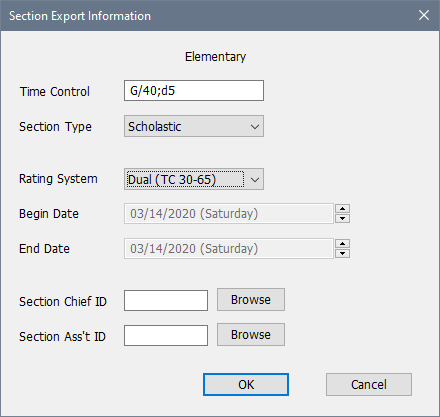
Time Control
If you provided a time control for the section, it will be copied here. Otherwise, enter it here. The format for this is G/nn;dm for Game in nn with m second delay—the section above is G/40 with 5 second delay. nn should always be in minutes, so game in two hours (with five second delay) is G/120;d5. With two controls, use something like 40/90,SD/60;d5 for 40 in 90, then 60 minutes sudden death, again with 5 second delay. A delay or increment field is necessary, even if it's zero. So 5-minute blitz with no delay is G/5;d0. Increment time controls use +m rather than dm, so G/90;+30 is Game in 90 with 30 second increment.
Section Type
Choose the section type (scholastic, non-scholastic but no Grand Prix, Grand Prix).
Rating System
Choose the rating system. (In practice, this is ignored and the Time Control information is used, so make sure you get the Time Control correct).
Begin Date
End Date
These are "spin" buttons which you can use to choose the end and start date of this section. They are initialized with the start and end chosen for the overall tournament.
Section Chief ID
This is optional to give tournament direction credit if someone who is not the chief tournament TD was in charge of this section. You can use the Browse button to look this up on the US Chess database.
Section Ass't ID
This is similarly optional if you had a section assistant. You can use the Browse button to look this up on the US Chess database.
The program then creates the following files on the directory that you specified in the Tournament dialog box;
THEXPORT.DBF
TSEXPORT.DBF
TDEXPORT.DBF
You need to upload these to the US Chess web site when you submit your report. Those will be processed and you will get a report about any errors. You may have to regenerate the report after correcting problems.
Note that WinTD always submits tournament reports as if they were "Swiss System" tournaments. There's no harm in this; in fact, the "Round Robin" form ends up being converted into the same format as a Swiss anyway. However, if you want to get credit for running a round robin for ANTD or NTD certification, you will need to include a note to that effect when you apply for certification.
Copyright © 2026 Thomas Doan