How To: Print a Pairing Sheet |
After you've done pairings for a round (How To: Pair a Round), you can print out the pairings by doing the following:
1.Create a Games Window listing the games. Go to the Sections Window and select one or more sections, then do the Section>List Games-Current Round operation or hit the  toolbar button. For each selected section, this opens up a new Games Window displaying the scheduled games in that section.
2.Switch to one of your Games Windows. Choose Reports>Print Window to print a pairing sheet for the active Games Window (or use Report>Print Game Windows to print pairing sheets for all open Games Windows). This brings up the following dialog box:
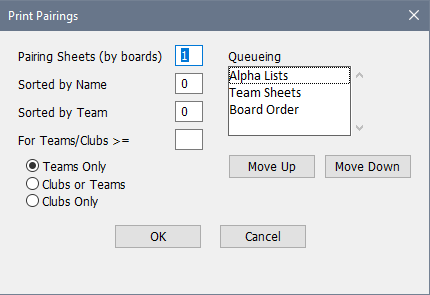
The dialog box lets you print up to four versions of the games list. For the first three, the number in the text field specifies the number of copies of that sheet you want to print. For the last item, the number indicates the minimum team size that will be printed:
•Pairing Sheets (by boards) prints standard pairing sheets, with blanks for entering results, sorted by board number.
•Sorted by Name prints an alphabetized list of all the players. For each player, the listing includes their assigned color, board number, and the name of the opponent.
•Sorted by Team prints a list of all the players, sorted by team name (for combined tournaments). For each player, the listing includes their assigned color, board number, and the name of the opponent.
•For Teams/Clubs >= prints a separate sheet for each team and or club that has at least the number of players specified in the field (leave it blank if you don't want any team/club pairing sheets). Each sheet lists the team or club members (alphabetically), their assigned colors, board numbers, and the names of their opponents. If you enter a value in this field, you can use the three "Teams Only", "Clubs or Teams" or "Clubs Only" buttons to further control what is printed. Select "Teams Only" if you only want pairing sheets for teams, and "Clubs Only" if you only want pairing sheets for clubs. The "Clubs or Teams" choice assumes that clubs are supersets of teams, so it first prints pairing sheets for all clubs with the required number of players. It then prints additional pairing sheets for those teams which have a sufficient number of players, but are not part of clubs for which pairing sheets have already been printed.
The Queueing list box allows you to adjust the order in which the pages are printed. Board Order refers to the board by board pairing sheets, the Alpha Lists are the Sorted by Name and Sorted by Team sheets (if you do both, Sorted by Name will print first) and the Team Sheets are the separate team and club sheets. To change the order, click on one of the items and use "Move Up" and "Move Down" to put it in its proper position.
What is displayed on different types of pairing sheets is controlled on the "Pairing Sheets" tab of the Preferences Dialog. The choices in the "Pairing Sheet (by Boards)" box control the appearance of the board by board lists, and the choices in the "Pairing List (Alpha)" box control the Sorted by Name and Sorted by Team lists. Note that, particularly for the "by boards" pairing sheets, you may run into some problems if you try to include too much information—long names will get truncated so that the fields that you requested can be included. (The board by board pairing sheets need to show detailed information for both players, while the alphabetical and team lists only show it for the opponent).
See Samples: Pairing Sheets for examples.
Notes
•As noted above, the List Games>Current Round operation opens a separate Games Window for each selected section. If you prefer, you can use List Games>Combined Sections, which lists the games for all the selected sections in a single Games Window. The pairing sheets or lists printed from such a window also combine the sections.
•For team vs team tournaments, Reports>Print Team Results Sheets will print a form for each pairing showing the team names and leaving blanks for board results and for captain's signatures.
•The numbers of the first three forms (though not the queueing order) can be saved as part of a preference set. These default values can be set in the Pairing Sheets tab of the Preferences dialog box. You're allowed to save different numbers for single section and multiple section game windows. WinTD will also save the most recent settings used for each of those game window types.
Copyright © 2026 Thomas Doan