Dialog Box: Preferences |
To reach the Preferences dialog box, you must click on Manage Preference Sets which is on the File menu under Windows and the WinTDOSX menu on the Mac. Then click the button for General Preferences. This allows you to customize the appearances of printed pairing sheets and wall charts and other reports. You can save and reload these preferences (as well as the current Change Layout settings) using Manage Preference Sets... See preference sets for details.
Below is a picture of the Preferences dialog box with the Pairing Sheets tab selected:
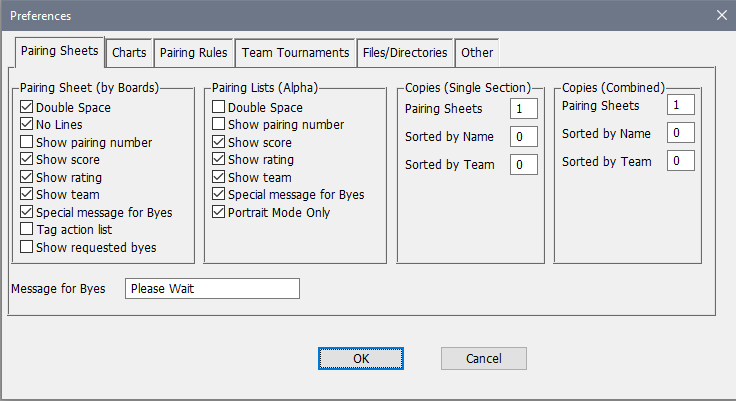
Pairing Sheet (by Boards)
This refers to the board by board pairing sheets on which are entered the game results by the players or scorers. See How To: Print a Pairing Sheet for details on printing these.
Double Space
No Lines
Double Space selects single or double spaced output, while No Lines suppresses the grid lines that would otherwise be printed on pairing sheets. These are a matter of taste. If the players will be entering the results directly on the pairing sheet, you will probably want to have No Lines off, as the posted sheet will have a cleaner appearance. If there might be handwritten changes to the pairings, however, we would suggest both Double Space and No Lines to make room for the edits.
Show pairing number
Show score
Show rating
Show team
Your choices here tell WinTD what information you want listed with the player's names. You shouldn't choose more than two of them, since they will start to crowd out the name. For scholastic individual/team tournaments, the best choice will typically be Show score and Show team, since those are the pieces of information most useful for any pairing adjustments that you might want to make. Show score and Show rating would be the normal choices in non-scholastic tournaments.
Special message for Byes
Check the Special message for Byes box if you want the pairing sheet to show a message you supply, rather than simply "Bye" for those with a forced (odd-player) bye. Enter the desired message in the Message for Byes field at the bottom left of the dialog box.
Tag action list
This puts a * next to the names of all players who, according to records, either have not paid all their fees, or who have no current US Chess membership. These are exactly the players who will be listed if you choose "Problems" in the Show box of the Change Layout Dialog Box.
Show requested byes
Ordinarily, WinTD will not show the requested byes on the board by board pairing sheets. (They are always shown on alphabetical or team pairing lists). If, however, you post the board by board sheets, it's a good idea to show the byes on it.
Pairing Lists (Alpha)
Pairing lists are alphabetical (by individual or team) lists of players and their opponents. Unlike the pairing sheets, no one will be writing on these. These are mainly to be read by the players to find their board. See How To: Print a Pairing Sheet for more information.
Double Space
This is a matter of taste. We generally prefer the default single spacing.
Show pairing number
Show score
Show rating
Show team
These indicate the information to be shown in parentheses after the opponent's name. This gets too busy (and crowds out the name) if you select more than two. Our suggestion is Show rating and Show team (if applicable), since those are the two pieces of information most players would want to know besides the board number, color and name.
Special message for Byes
Check Special message for Byes box if you want the pairing sheet to show a message you supply, rather than simply "Bye" for those assigned a forced (odd-player) bye. Enter the desired message in the Message for Byes field at the bottom left of the dialog box.
Portrait Mode Only
We would suggest keeping this checked. If you ask for too much information, or request a fairly large font, the program might otherwise switch to landscape mode for printing. If this is checked, it will instead reduce the font size to keep the page in portrait mode.
Copies (Single Section)
Use these fields to specify how many copies of each type of pairing sheet (the board by board pairing sheets, the alphabetical by name and alphabetical by team) will be printed when you Print Pairing Sheets. Note that you can override this when you do the printing—this just determines how the dialog is initially set.
Copies (Combined)
Same as above, but applies when printing pairing sheets for multiple sections.
Below is a picture of the Preferences dialog box shown with the "Charts" tab selected:
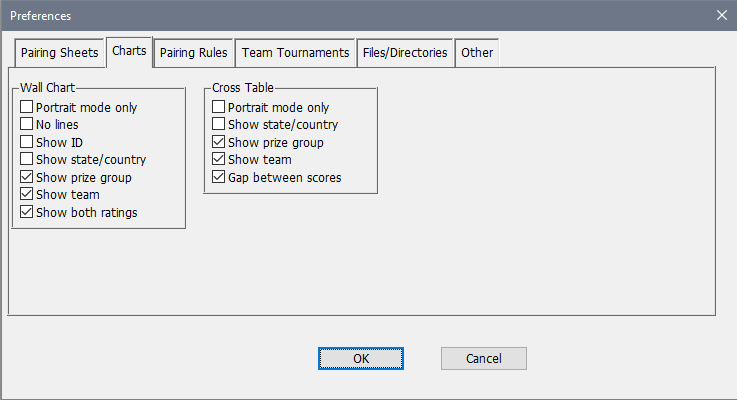
Wall Chart
These settings apply to wall charts. See How To: Print Wall Charts and Cross Tables for details.
Portrait mode only
Ordinarily, WinTD will switch from portrait to landscape mode when you get to around six rounds. If you select "Portrait mode only," WinTD will shrink the font size instead to get everything to fit in portrait mode.
No lines
Choosing No lines eliminates the lines that usually separate the fields on the wall chart. This speeds printing up slightly on many types of small printers, at the cost of readability.
Show ID
Show state
Show prize group
Show team
Show both ratings
You can select any combination of these. If you Show both ratings, the top line will be the one you have chosen to be the controlling rating in assigning pairing numbers.
Cross Table
These settings apply to cross charts. See How To: Print Wall Charts and Cross Tables for details.
Portrait mode only
Ordinarily, WinTD will switch from portrait to landscape mode when you get to around six rounds. If you select Portrait mode only, WinTD will shrink the font size instead to get everything to fit in portrait mode.
Show state
Show prize group
Show team
Because cross tables use just one line per player rather than two, you don't have as many choices of what to include as you do with wall charts. The cross table will always show just a single rating: the one actually used in assigning the pairing number.
Gap Between Scores
If you turn on this option, WinTD will insert a blank line between each score group on cross tables.
Below is a picture of the Preferences dialog box shown with the Pairing Rules tab selected:
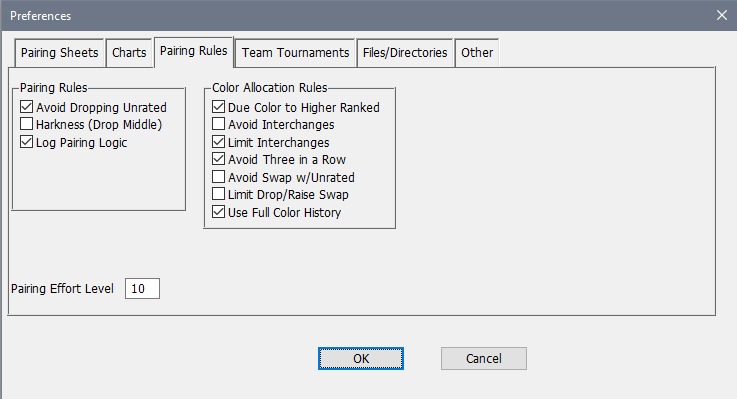
Pairing Rules
Avoid Dropping Unrated
If you check this (which is the correct choice for US Chess rules), WinTD will generally drop the lowest rated player in a score group if a drop is necessary. Otherwise, one of the unrateds will usually be dropped, since they are ranked after all the rated players.
Harkness (Drop Middle)
This selects an alternate method of dropping players to a lower score pack. With the Harkness method, the middle-rated player in the score pack is usually the one dropped, rather than the lowest rated player. See Pairing System: Drop/Raise ("Float") Decisions for more information.
Log Pairing Logic
Turn on this switch to have WinTD generate a text log detailing the pairing process used for each round and section you pair. The output, which can help you answer questions about why certain pairing decisions were made, will be displayed in a text window. See Pairing System: Pairing Log for details.
Color Allocation Rules
Due Color to Higher Ranked
If this box is checked, WinTD will always give the due color to the higher ranked player whenever the two players have an equal claim to a color. (Note that this does not mean the higher-ranked player necessarily gets White—she gets the color that both players would expect to receive). If not, WinTD uses the more "modern" treatment of favoring the higher ranked player in even or plus scorepacks and the lower ranked player in minus scorepacks, and "flipping a coin" in the final round. See Pairing System: Color Assignment for more details.
Avoid interchanges
If you check this, WinTD will never switch a player between the top and bottom halves of a scorepack in order to improve color. This is not listed as an option in the current US Chess rule book, but a number of TD's pair this way.
Limit interchanges
If you check this, WinTD will allow top/bottom interchanges to correct equalization, but not to fix the less serious problem of alternation errors.
Avoid Three in a Row
If you check this (which you should if you want to comply with US Chess rules), WinTD will try anything short of shifting a player out of a scoregroup to avoid giving a player the same color three rounds in a row.
Avoid Swap w/ Unrated
This is described in Pairing System: Color Correction. If you check this, WinTD will value a pairing swap involving a rated and an unrated player only on the other side (i.e. it will use the rating gap between the other pair of players involved). By default, such swaps are always considered acceptable.
Limit Drop/Raise Swap
When dropping or raising players between score groups for pairing, color allocation issues will normally influence the choice of which players will be dropped or added. Turning on the Limit Drop/Raise Swap setting doubles the effective rating difference used in determining whether to switch players for the purposes of color correction, making it highly unlikely that anything more than a trivial change will be made. See Pairing System: Drop/Raise ("Float") Decisions for details.
Use Full Color History
Use Full Color History is the standard for color allocation in the FIDE rule book and in the US Chess beginning with the 5th edition. If this is used, if two players have an identical imbalance of whites vs blacks, the colors assigned will be based upon the most recent round at which the players had different colors. For instance, WWBBW will get White vs BWWBW, as the first player had Black in round three, while the second had White. If you don't select this, WWBBW and BWWBW will be considered to have an equal claim. See Pairing System: Color Assignment.
Pairing Effort
The default effort level (see Pair a Round Dialog Box) is 20. You can use this field to specify a different (larger) default value if desired.
Below is an example of the Preferences dialog with the Team Tournaments tab:
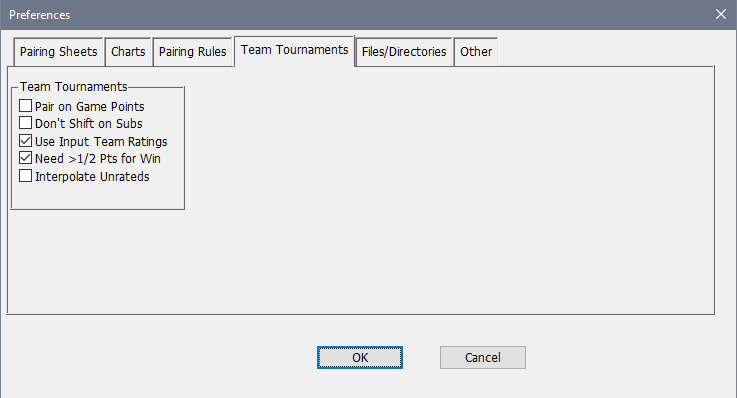
Team Tournaments
Note well that these are all now included as part of the a when you have a team section. The preferences are only used to initialize the fields in that when you create a new section.
Pair on Game Points
Turn this on if you want teams to be paired based on their total game points (i.e. total points of games played by individual players), rather than match points. If you select this, standings will also be computed on game points.
Don't Shift on Subs
This affects how substitutions are handled. By default, when you use the Board Results dialog box to substitute in one or more players, WinTD will shift any players up to higher boards to fill in gaps, so that players play in the order specified in the Team Setup dialog box. If you turn on Don't Shift on Subs, WinTD will substitute player(s) onto the vacated board(s) directly, rather than shifting players up to fill gaps. The US Amateur Teams and the Olympiads both would have Don't Shift on Subs turned off.
Use Input Team Ratings
The standard practice in WinTD is to compute average team ratings and use them to assign pairing numbers. However, if you are assigning "seeds" from sources other than current ratings, you need to check this box and follow the directions in How To: Use Seedings Not Ratings.
Need >1/2 Pts for Win
If you check this, a team needs to score more than half the points possible in a round to receive a full match point. For instance, in a four board match, if a team which has only two players show is paired with an absent team, it would get two board points, but only 1/2 match point, since it has scored only 2 out of 4. The other team obviously gets 0 of each. Note, by the way, that the result in the Game Result dialog box will still show a forfeit "win" for first team. The adjustment is made whenever match points are computed.
Interpolate Unrateds
If you turn this on, WinTD will use estimated rating numbers when computing the team average rating. An unrated playing top board is estimated at 50 points above the player on board two, while unrateds on bottom boards drop 50 points a board from the bottom rated player.
Below is a picture of the Preferences dialog box shown with the Files/Directories tab selected:
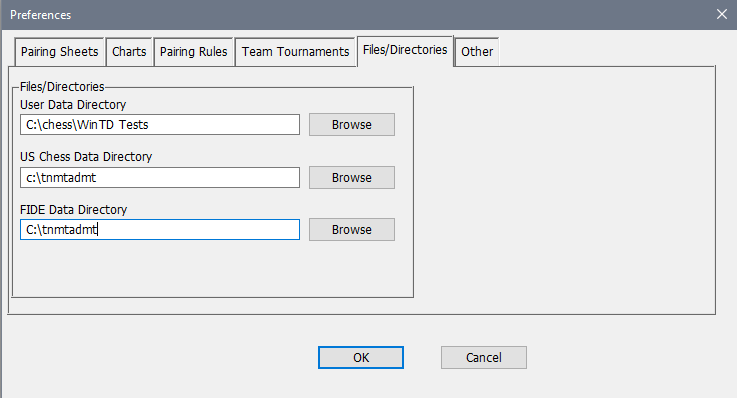
Files/Directories
These are the three default directories used for various purposes. You need to have US Chess Data directory set in order to use the US Chess database, and the FIDE Data Directory set in order to use the FIDE database. You can set/change those here, or using US Chess>US Chess Directory or FIDE>FIDE Data Directory.
The User Data Directory is the default directory for your tournament and master files—when you open or save one of those files, it will be the directory suggested as the location for that. You can set a "permanent" value here, or you can use File>User Directory or File>Recent Directories to make a temporary change. (Some TD's use one directory for all their tournaments, while others use a different directory for each tournament, or each type of tournament).
Below is a picture of the Preferences dialog box shown with the Other tab selected:
.png)
Miscellaneous
First Last in Reports
Player names are normally printed or displayed in last name first, first name last (e.g., "Smith, Joe") format. Turn on this setting if you want reports (such as standings, upset prizes, printed wall charts) to show first name first, last name last (e.g., "Joe Smith").
LAST First in Reports
Use this if you want to display player names using the format "LAST NAME, first name" (e.g., "SMITH, Joe"). Note that the "First Last in Reports" and "LAST First in Reports" are mutually incompatible. If you leave both fields turned on, WinTD will use the "First Last in Reports" format.
Don't Show Second/Local Ratings
This setting only applies if you are using the "Main Rating, Second/Local if Unrated" choice for assigning pairing numbers. If Don't Show Second/Local Ratings will show the players without a main rating but a second/local rating as unrated in any output. This feature allows the TD to use estimated ratings for pairing purposes only: you just enter estimated ratings in the Second/Local Rating field, and select the "Main Rating, Second/Local if Unrated" for the pairing number assignment and "Don't Show Local Ratings" settings.
If this setting is off and "Main Rating, Second/Local if Unrated" is selected for assigning pairing numbers, local ratings will be used where necessary for all purposes (including prize distribution).
Display Font Size
This chooses the font size to be used in effectively all WinTD windows (section, player, game, report). Note that, if you choose Use Accessibility Adjustment and you have increased the Text Size using the Windows Accessibility settings, this will automatically scale up by the percentage you request, so don't increase this and do the general Windows text size adjustment.
At this point, this only has an effect on Windows. If you choose this (which is on by default) and you increase the Text Size using your Windows settings, the interface elements that WinTD controls (the dialogs and windows) have text scaled up as requested.
EMail/Text Messaging
These are used for the information needed for sending e-mails from your computer. See How To: EMail/Text Pairings.
Host/SMTP URL
This will usually be smtp. followed by a company web name (such as smtp.comcast.net). SMTP stands for Small Mail Transport Protocol, which is used for e-mails and text messages. However, in some cases, you may need to put in a full URL for sending mail, as is done above. The smtps:// prefix is required for some providers to use a secure connection. The port number can be appended to this with a :port suffix (again, as is used above). Note that while we're using gmail.com as an example, gmail puts some fairly severe anti-spamming restrictions on the use of a gmail account so you might want to look into using an account from your actual Internet Service Provider.
Port
This is the SMTP port for outgoing mail. If you append this to the URL above, you don't need to repeat it here. This used to be 25 for most ISP's, but that's much less common now (as part of anti-spamming efforts). You'll have to check with your service provider to find out both the host name and the port number to use.
User ID
This is the user ID that you use for sending e-mails on your account. Note that this is not (necessarily) the e-mail address that will be shown as the "sender".
Password
This is the password used in sending e-mails on your account. This is blotted out as shown above so type it accurately.
Copyright © 2026 Thomas Doan