|
Getting Started / Getting Started: The WinTD Interface / Games Windows |
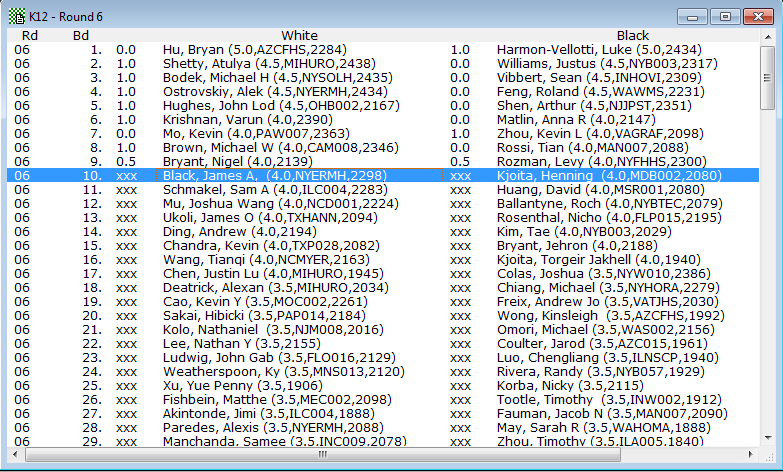
Games Windows display a list of the games in the selected tournament section(s). Here is a sample:
Description
For each game, the window displays the round number, the board number, the names of both players, and the score for each player for that game. The information displayed for each player is based upon your "Pairing Sheet" preferences. See Preferences for options.
The example above shows the games for round six (indicated by "R06") for the K12 Championship section of SuperNationals V. Both scores are shown as "xxx" if a result has not yet been entered. This has partial results entered through board 9.
From a Games Window, you can print pairing sheets using Reports>Print Window (or Reports>Print Games Windows), enter or change game results, or correct the colors or players for a game.
Opening a Games Window
There are several ways to open a Games Window:
•The Section>List Games operations list all games in a section (or sections) for a given round. Section>List Games-Current Round opens a separate Games Window for each selected section, while Section>List Games-Combined Sections displays all the games in a single window. Both display the games for the current round. Section>List Games-Specific Round... allows you to list the games from any round for the selected section(s).
•Clicking on the "List Games" toolbar icon (see below) is equivalent to selecting the Section>List Games-Current Round operation described above.
•The Players>List Games operation lists all games played so far by the selected player(s).
Double Clicking
Double-clicking on a game brings up the Enter Game Results dialog box, which allows you to enter or change the result of that game.
Menu Operations
The Games>Show Open and Games>Show All operations are only enabled when a Games Window is open. The Games>Enter Scores, Games>Correct the Colors, Games>Correct the Players, Games>Split Results, FIDE>Mark as FIDE Ratable and FIDE>Mark as not FIDE Ratable operations are only enabled when you have selected one or more games from the active Games Window, since those operations are applied to selected games.
Drag and Drop
Drag-and-drop is used only for switching opponents within a single Games Window to correct pairings or correct color assignments.
Keystrokes
In addition to the cursor control keys for moving around the window, you can use the Quick Entry Keys to enter scores.
Toolbar Icons
The following toolbar icons are available when a Games Window is active:
|
|
Prints pairing sheets for the games displayed in the active window. This is equivalent to the Reports>Print Window operation. |
|
|
Selects all the games in the window. Equivalent to Edit>Select All |
|
|
Brings the Sections Window for this tournament to the front (i.e. makes it active) |
|
|
Brings up the Change Layout dialog box. This is equivalent to the Edit>Change Layout operation. |
|
|
Exports the selected games in a chosen format (text, spreadsheet). This is equivalent to the File>Export operation. |
|
|
This is the "Refresh" button. It refreshes the contents of the current window to reflect any changes to scores, standings, etc. |


Export
You can use the File>Export operation to export information from a Games window to a new file in comma- or tab-delimited text, WKS, Excel (XLS or XLSX) or HTML formats.
Cut/Copy/Paste/Clear
Edit>Clear deletes the selected game(s). Edit>Copy can be used to copy information to the clipboard to be pasted into another program. It cannot be used to "move" games around within WinTD. (Edit>Paste is deactivated for Game Windows).
Edit>Copy copies data to the clipboard in WK1 and DIF spreadsheet formats, as well as in tab-delimited text format. So, if you paste the information into a spreadsheet program, you will get a table of information with each piece of data, round scores, boards, player names, etc. in its own cell, allowing you to do your own sorts or formatted reports. Most applications also offer a "Paste Special" operation that allows you to choose the format.
Notes
•If you open a Games Window with the "G" icon, or use Section>List Games, Current Round; and you later pair the next round, WinTD will automatically update this window to show the new current round.
•You can automatically close all open Game windows by selecting Window>Close Game Windows.
Copyright © 2026 Thomas Doan