How To: Re-Enter Players |
Some tournaments allow a player (for a fee) to "re-enter" a tournament; that is, withdraw from his current section and enter another one. Usually the first section is on a slow schedule for early rounds while the other is on a faster schedule, after which the two will merge (see How To: Merge Sections). Note that this is very different from a player resuming play after an absence—for those cases, all you need to do is to check such a player in to make him available for the next round (How To: Check Players In and Out).
If you're sure that "re-entering" is what you want to do:
1.Select the player(s) from a Players Window. See How To: Display a List of Players for help in creating a Players Window.
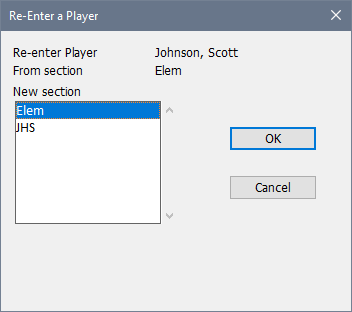
2.Select the Players>Re-Enter Tournament operation. This brings up a dialog box listing the sections in the tournament. Select the section into which you wish to enter the player and click on OK. The player will be withdrawn from the current section and re-entered in the selected section.
For example, this will withdraw Scott Johnson from Elem and re-enter him in JHS:
Notes
•If you have selected more than one player in the Players Window, WinTD will pop up a separate dialog box for each player.
•If the player has missed some rounds in the new section, he will get zero points for the skipped rounds. See How To: Assign Byes if you need to give him half or full point byes for those rounds.
•If you have a schedule where a player can play two entries "simultaneously" (that is, two schedules don't overlap at all) and then choose at the merge point which one he wants to keep, use Players>Choose Active Entry after the merge to make this selection. First, select the entry that is being withdrawn, then do Players>Choose Active Entry and select from the scrolling list the entry which will remain active.
Copyright © 2026 Thomas Doan