File-Preferences |
The Preferences... (or Settings...) operation (File>Preferences in Windows and UNIX and RATS>Settings on a Macintosh) allows you to customize certain aspects of RATS according to your preferences. Whenever you change one of these settings, RATS will ask if you want to save the new settings. If you respond "Yes," the new settings will be used each time you start RATS.
Selecting this operation brings up the following dialog box:
.png)
Serial Number(s)
This field floats above all the tabs. You will need to know the serial number for your RATS license in order to obtain technical support and updates. (If you have a classroom or trial version, you will not have a serial number, so you will need to explain that in any contact for support). If you enter your serial number in this field, you can view it at anytime by using the "About RATS" operation. If you have the CATS cointegration analysis procedure, you can also enter that serial number here. Just separate the two numbers with a comma.
Depending upon how you bought the software, your serial number(s) may be on your invoice, on a license agreement, or printed on a label on your CD envelope. On some platforms, the serial number will be loaded automatically when you install the software.
Open New Input Window at Start
If this check box is turned on, RATS will automatically open up a new, empty, text window set as the Input window whenever you start the program.
Open New Output Window at Start
If this check box is turned on, RATS opens up a new, empty, text window set as the Output window whenever you start the program.
If you turn on both of the switches above, you'll start out with separate Input and Output windows, tiled so both are visible on the screen.
Open Series Window at Start
If this check box is turned on, RATS will automatically open the Series Window, which displays the series available in memory.
Buffer Text Output
If this option is off, RATS will display each line of output as it is generated. When this option is on, RATS will store up (buffer) blocks of output in memory and then send the entire block of output to the screen at one time. Output is displayed after all selected instructions have been completed, or every few seconds, whichever comes first. This is generally much faster than updating the display one line at a time, so we strongly recommend that you use this option, unless you definitely want to see each line as it is generated.
(Only applies to Windows at this point). If this is checked on, font sizes for almost all items in the RATS interface (the editor, window lists, reports, dialogs) are increased if you have done the Text Size adjustment in the Accessibility (or Ease of Access) section in your Windows Settings.
Display Font Size
This is the font size which applies to the text in Report Windows, Series List Windows and Series Editing Windows. (Text Edit Windows are covered by their own font choice on the Editor Tab).
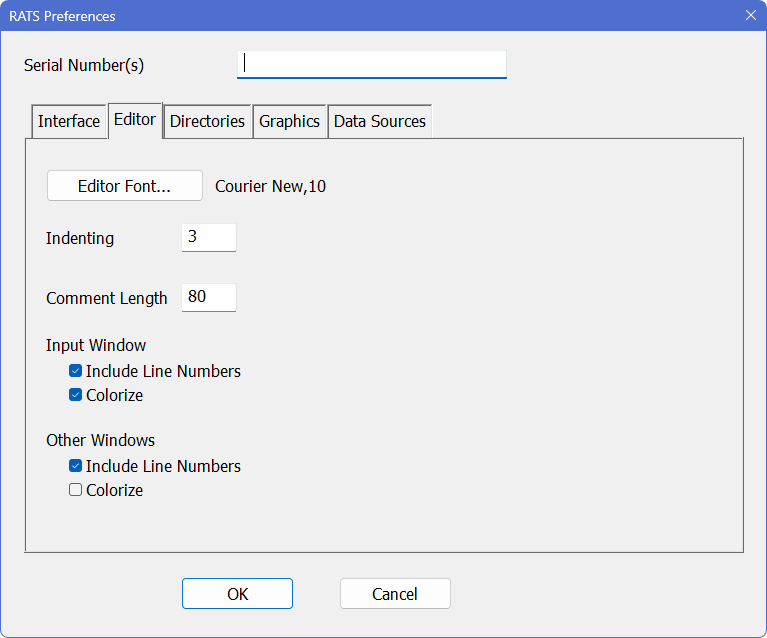
Clicking on the Editor tab changes the dialog to show the following, which control aspects of the RATS Editor environment:
Editor Font Button
This button brings up a standard font dialog box, which allows you to select the font and type size used in the RATS Editor display. You can select from any of the monospaced fonts installed on the system. Note that RATS always uses the Regular font style, so the settings of the "Style" field are ignored. RATS will also use this font and size if you print text from the editor.
Indenting
This sets the number of spaces used by the indenting operations on the Edit menu.
Comment Length
This sets the line length (in number of characters) that will be used by the Edit>Comments>Format Comments operation.
Input Window
Include Line Numbers
If this is checked on (which it will be by default), an editor window which is currently the Input Window will include line numbers in the left margin.
Colorize
If this is checked on (which it won't be by default), an editor window which is currently the Input Window will have RATS syntax elements (such as comments, quoted strings, supplementary cards) colorized.
Other Windows
Include Line Numbers
If this is checked on (which it will be by default), any editor window which is not currently the Input Window will include line numbers in the left margin.
Colorize
If this is checked on (which it won't be by default), an editor window which is not currently the Input Window will have RATS syntax elements (such as comments, quoted strings, supplementary cards) colorized. Since a window which isn't the Input Window is unlikely to have any RATS syntax elements, you probably will want to leave this turned off.
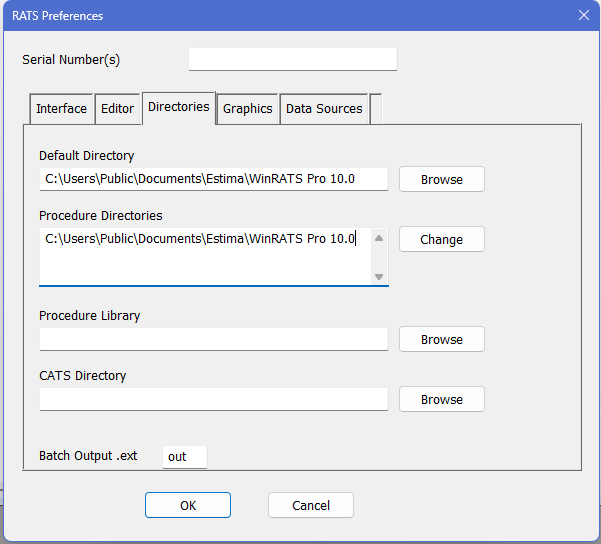
Clicking on the "Directories" tab changes the dialog to show the following, which allows you to set various default directory locations, as well as the default extension used for batch-mode output files. Note that your directories may not match the ones shown below:
Default Directory
This sets a default directory that will be in effect each time you start RATS. By default, instructions that open files (OPEN, DEDIT, SOURCE, ENVIRONMENT) will look for or create the requested file in this directory. On most platforms, this also controls the default directory shown when you do a menu operation such as File>Open or File>Save.
You can override the default by including an explicit path on the instruction used to open the file. You can also change the default directory for the current session using the File>Directory operation.
Procedure Directories
This field is useful if you like to store your procedure files in a particular directory or directories. If you try to execute a procedure without having compiled it first, RATS will automatically search for a file whose name matches that of the procedure, with an .SRC extension. If this field is not empty, RATS will start the search in the first directory listed, then (if there is more than one), will check the next directory in this field. If neither of those works, it will also look in the current directory. Change pops up a dialog box
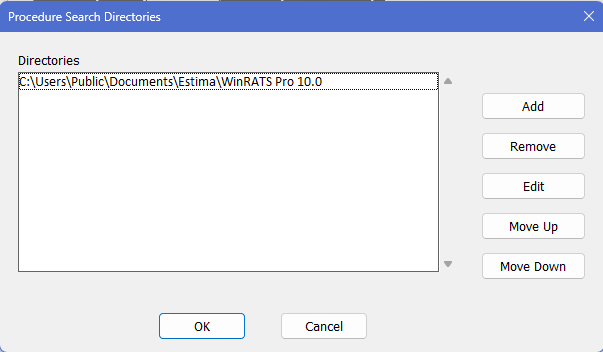
which allows you to more easily manage a "search path" list for procedures as it has one line in the scroll box for each procedure directory. Add allows you to add a new one, Remove allows you to remove the selected lines, Edit lets you edit a path name, Move Up and Move Down can be used to change the search order. (Again, these are searched from top to bottom).
Procedure Library
This lets you specify a procedure library file (normally a file containing a procedure or set of procedures, or a file containing SOURCE commands that source in other files containing procedures). The file will be executed automatically when you start RATS, and any time you clear the memory using File>Clear Memory or an END(RESET) command.
CATS Directory
If you have Version 2.0 or later of the CATS cointegration analysis procedure, enter the directory where these files are installed in this field. This will allow you to use the CATS Wizard to launch CATS.
Batch Output Extension Field
When you run a program in batch mode, RATS normally directs all output to a file named filename.lst, where filename is the name (excluding extension) of your input file. You can use the "Batch Output" field to specify an extension other than lst. Note that you can use an OPEN OUTPUT instruction in your program to direct the output to a different file.
.png)
Use New RGFZ Format?
With version 11.0, the standard format for RATS graphs has changed from a hardrmally, RATS displays each graph you create or load from disk in a new graph window. Turn this check box on if you want RATS to use only one graph window. With this setting on, the first graph you create or load will be displayed a new graph window. Subsequent graphs (created or loaded from disk) will be displayed in the same graph window, replacing the previous graph.
One Graph window only
Normally, RATS displays each graph you create or load from disk in a new graph window. Turn this check box on if you want RATS to use only one graph window. With this setting on, the first graph you create or load will be displayed a new graph window. Subsequent graphs (created or loaded from disk) will be displayed in the same graph window, replacing the previous graph.
Fonts for Label Types
This lets you change the defaults for the font, size, and style of the various graph labels available in RATS. The dialog functions just like the one displayed by the Graph Settings Wizard. The difference is that the Preferences version sets the defaults that will be loaded automatically each time you start the program, while the Graph Settings Wizard only changes the settings for the current session.
.png)
FRED Key
This field stores the “key” used to access the FRED® database (provided by the St. Louis Federal Reserve bank) using an internet connection. You should not change or delete this key code unless the St. Louis Federal Reserve changes the access keys at some point.
Haver Analytics Database
You can use this field to set a default directory for accessing Haver DLX format files, using the FORMAT=HAVER option on the DATA instruction. This path will be used if the user does not specify an explicit path using an OPEN HAVER instruction.
CRSP
As with the Haver field, this sets the default path for accessing CRSP (Center for Research in Security Prices) database files with the FORMAT=CRSP option on DATA. This feature is only available in the Professional version.
Global Insight (Citibase) Directory Button
If you have the "full" version of the Global Insight Economics database, (formerly known as DRI Basic/Citibase), enter the directory where the files are stored in this field. This is where RATS will look for the DRI files when you ask it to read data from the database using DATA(FORMAT=DRI).
Copyright © 2026 Thomas A. Doan