Dialog Box: Pair a Round |
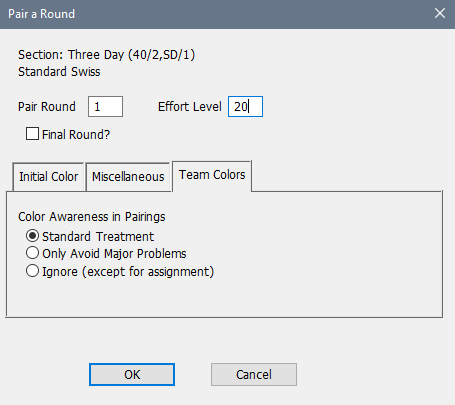
When you select the menu operation Section>Pair a Round, WinTD displays this dialog box for Swiss-style sections. Pair a Round does not, by itself, produce any direct output. Once you've done it, you can display the pairings in a Games Window by selecting the menu operation Section>List Games-Current Round. Use the operation Reports>Print to print the games list as a pairing sheet. See Pairing System for details on the system used to pair players.
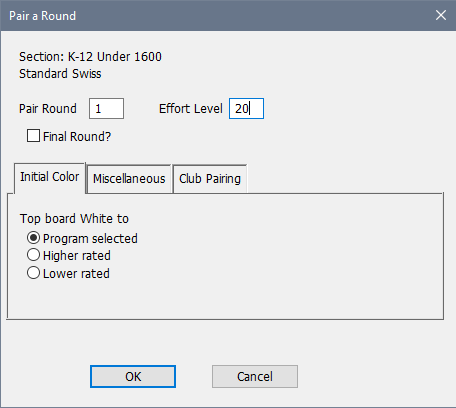
Which tab are shown in the dialog depend upon the options being used, and the Initial Color tab (which is the visible one in the first sample) is only shown when the first round is being paired. The other tabs are described further down the page. The dialog box for a Round Robin section is shown below.
Description
The name of the selected tournament section appears near the top of the dialog box ("K-12 Under 1600" in this example) and below that is the Pairing Style of the section (here "Standard Swiss"). If you selected more than one section before doing Pair a Round, WinTD will automatically bring up a dialog box for the first section. If you hit OK, it will then bring the dialog for the next section, and so on. If you hit Cancel, WinTD cancels the pairing operation for that section and any subsequent sections. Sections that had already been paired (i.e. sections for which you had clicked on OK) remain paired—use Edit>Undo if you want to undo those pairings.
Pair Round
The number of the round that you want to pair. WinTD will fill this in with what it expects to be the next round—you can change this if necessary.
Final Round?
Turn on this check box if you are pairing the final round of the tournament. If you are using WinTD's default color allocation procedure and are pairing the final round, WinTD will "flip a coin" whenever two players have an equal claim to a color. See Pairing System: Assigning Colors for more information.
Effort Level
This parameter allows you to control how hard WinTD will work when determining pairings. This now defaults to 20 which gets the pairings done in a reasonable time in almost any section. The maximum value is 999, though usually there is no progress beyond 20.
Initial Color Tab
This appears only the first time you pair a section. If you choose Program Selected, WinTD will "flip a coin" to decide who gets White on the top board. If you have decided this yourself, put your choice in.
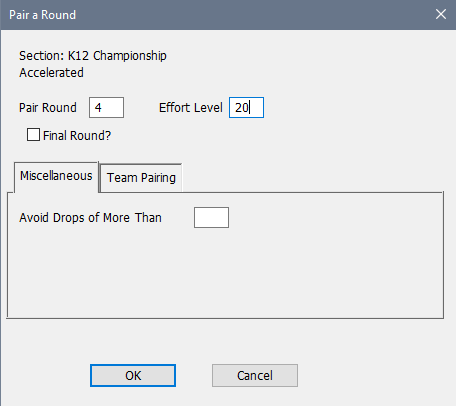
Avoid Drops of More Than
You will normally want to leave this field blank. However, if you enter a score value, such as 1.5, in this field, WinTD will break all other pairing rules as needed to prevent dropping a player to a score group more than the specified amount lower than the player's score. See Pairing System: Drop/Raise Decisions for details.
This will be included if you have the Same Team Code preference on the Pairing Preferences tab in the Add/Edit a Section dialog set to either "Don't" or "If Required".
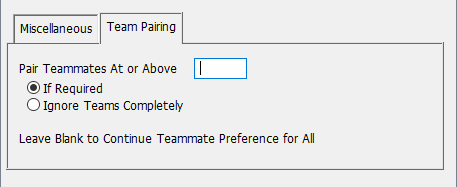
Pair Teammates At or Above
You can use this to override the pairing restriction for high score groups only. If, for instance, you put in 5.0, WinTD will allow teammates to be paired in score groups 5.0 and above. You have to choice to downgrade this to "If Required" (so it will do anything it can short of breaking a score group to avoid pairing teammates) or to "Ignore Teams Completely" where it will do the pairings at or above the score you set as if there were no team codes.
This will be available if you have the Same Club Code preference on the Pairing Preferences tab in the Add/Edit a Section dialog set to "Avoid".
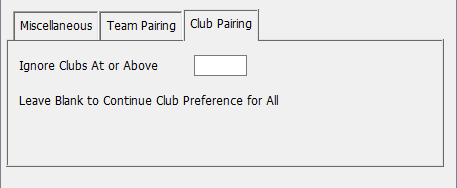
Ignore Clubs At or Above
You can use this to override the pairing restriction on club codes for high score groups only. If, for instance, you put in 3.0, WinTD will ignore the club field in score groups 3.0 and above.
This will be available only if you are pairing a team vs team section with an even number of boards. This affects how colors are taken into account in doing the pairings. The Standard Treatment means that colors are handled as they are for individuals. Only Avoid Major Problems means that alternation problems are ignored as are any equalization problems unless they would take colors to more than +2 in either direction, that is, WBW vs WBW is not considered to create a color problem, while WBWW vs WBWW is. Ignore (except for assignment) means that colors aren't taken into account in determining pairings. If you choose the second or third options, color will still be assigned to the team with the stronger claim.
This is the Pair a Round dialog box for Round Robin sections:
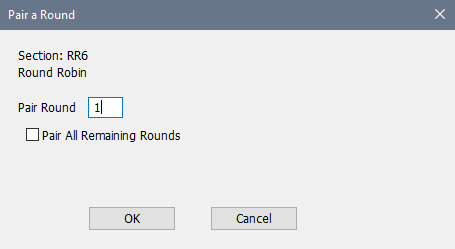
You can pair one round at a time, or turn on the Pair All Remaining Rounds check box to have WinTD automatically pair all the remaining rounds in the Round Robin schedule.
Copyright © 2026 Thomas Doan