How To: Assign Board Numbers |
When WinTD pairs a section, it assigns board numbers to the games in order beginning with the starting board number that you have set for that section. You can set this starting board number manually or automatically.
•To manually set or change the starting board number for a section, you use the Board Number field in the Add/Edit a Section dialog box. You can do this when you first create the section. To change it later, go to the Sections Window and double-click on a section to edit it. Fix the Board Number field and click on OK.
•To automatically change the board numbers for a set of sections, go to the Sections Window and select the sections. Then do Section>Assign Board Numbers... WinTD will display the Assign Board Numbers dialog box. This will reset the starting board number for all the sections selected based upon the numbers you input and the number of currently active players in each section. Note that, once these starting board numbers have been set, they will not change again if the number of players changes. If the number of active players increases (due to late registrants or first round byes), you may need to redo the board number assignments before the next round is paired.
Note that, whichever way you set the starting board numbers, the changes will have no effect on sections already paired. If you find that you have a board numbering problem after running the pairings, you have several ways to handle this. What you do depends upon how extensive the problems are. If nothing else works, you can always re-pair the round. Undo the old pairings, fix the starting board numbers and pair again. Usually, you can get by with a more modest solution. If, for instance, the only error is that your pairings show board numbers which don't match the numbers on the physical boards (for instance, the boards are actually numbered 1, 2, 3,... and you paired as 101, 102, ...), create a Games Window for the section in error, select all the games, and do the Games>Change Board Number operation. This will pop up something like:
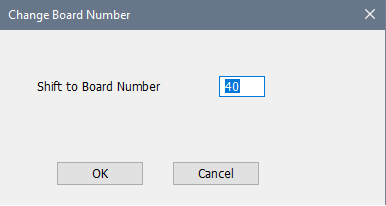
Show the correct board number for the first game (in our hypothetical, we would want 1), and all the games will have their numbers shifted. Then change the section information as described above so the problem won't repeat.
Small board numbering problems can also be handled on a board by board case as described below in Manual Changes to Board Numbering. If, for instance, the end of one section overlaps a board or two with the start of the next, select all games in one set of the duplicated boards, do Games>Change Board Number and set the new board number to an unused area. The selected games will be shifted to the board numbers starting with the one you indicated.
Choosing Board Numbering Schemes
Small tournaments, with one section or sections (like quads) of known size, usually are numbered beginning with board 1.
In larger tournaments with multiple sections, it's quite common to use "coded" board numbers. For instance, one section might start at board 101, the next at 201, etc. Just choose numbers far enough apart that you won't have overlap. This works best where you have enough room that you can provide some physical separation between the boards from the different sections, and have few or no late entries.
If you have a larger tournament, and don't have enough room to separate the sections, use the automatic board assignment operation described at the top of the page. If your boards are laid out in a systematic fashion, and you have at least some extra space, you might want to take advantage of the "rounding" feature in the Assign Board Numbers dialog box. If, for instance, you have a room laid out with six boards in a row, choosing "Round To" 6 will put the first board each section at the start of a new row.
Manual Changes to Board Numbering
If you need to move a game to another board, select the game, and use the Games>Change Board Number operation. This will allow you to shift this game to a selected board and will move the other games around to make that possible.
If you have a player who, because of a disability, needs to play at a special board each round, you can use the Always Assign Board box in the Tournament Info tab of the Add/Edit a Player dialog box; if the player's section is paired, that board will be held out of the normal board assignments and given to the game involving that player. For instance, if 106 is conveniently located at the end of a row, and you have assigned it to a player; if that player's game would naturally be at 110, the games that would naturally be assigned to 106, 107, 108 and 109 will instead be assigned to 107, 108, 109 and 110 and the player in question will be put on 106.
Copyright © 2026 Thomas Doan