


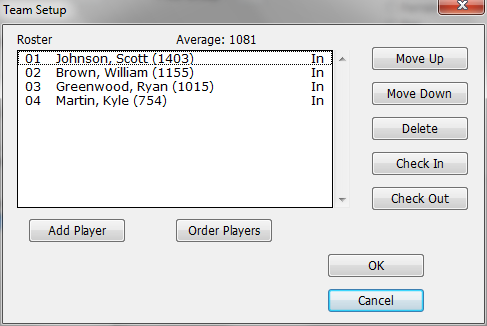
The Team Setup dialog box lists the players currently assigned to the team in board order. This is the dialog box which you use to maintain the roster for the team, including adding or removing players and changing the board ordering of a team. To display this dialog box, just open an Add/Edit a Player dialog box for a new or existing team and click on the "Edit Team" button. See Team Tournaments for details.
Add Player
This repeatedly brings up a special version of the Add/Edit a Player dialog box. You will notice that a number of things have been removed from this: the Section list box (the players will follow the team if you move it between sections), the Fee Paid box (keep track of entry fees by teams, not by players), Assign Byes (individuals don't get arranged byes). Other than that, you enter information as you ordinarily would.
The "Team" and "Club" boxes for the individual members of a team will have no effect within this tournament. However, matching the team ID with the team ID that you assigned to the team itself can help you in building a useful master file.
Order Players
Reorders the players based upon their ratings. If you have selected the Play in Rating Order choice in the Add/Edit a Section dialog box for this section, WinTD will automatically re-order the players as you add them, but otherwise (which means that board orders are arbitrary) they will keep the order in which you add them. If players have the same rating (typically unrateds), WinTD will maintain their original order.
Move Up, Move Down
This shifts the selected individuals up or down a spot. Use this to put the roster into a prescribed order.
Delete
Deletes the selected individuals from the roster. You can only do this if they have not yet played any games. If a player has to leave, you can withdraw him from the tournament using the Check Out button.
Check In
Click on this to check the selected player(s) back into the tournament.
Check Out
Use this to check the selected players out of the tournament (that is, withdraw them from the tournament). Players who have been checked out will continue to be listed on the roster, but WinTD will automatically skip them when it comes to assigning players to games in later rounds. You can use the Check In button to check them back into the tournament.
WinTD Help Contents
Team Windows
Team Files
Getting Started: The WinTD Menus
How To: Add Players to a Team
How To: Add Teams to a Team Section
How To: Assign Byes
How To: Change Board Orders of a Team
How To: Check Players In or Out
How To: Create a Team Tournament Section
How To: Create Additional Rated Games
How To: Enter Scores in Team Sections
How To: List Individuals in a Team Section
How To: Show/Print Team Standings (combined tournaments)
How To: Show/Print Team Standings (team tournament)
How To: Use Master Files for Team Tournaments
How To: Use Seedings Not Ratings
Team Tournaments
Dialog Box: Add/Edit a Player
Dialog Box: Add/Edit a Section
Dialog Box: Add/Edit a Team
Dialog Box: Assign Byes
Dialog Box: Board Results
Dialog Box: Board Weights
Dialog Box: Team Scoresheets
Samples: Team Pairing Sheets
Samples: Team Standings